How do I customize the invitation E-Mail for my employees?
Adjust the subject and body of the invitation email, set the sender and logo, and send the email in additional languages.
Go to Surveys ↗ · Opens the webapp — please log in firstYou customize a survey’s invitation email on the “Email Template” tab of that survey. This is where you edit the subject and the body. The sender name, logo and button colour are maintained centrally in your account settings and only shown here as a preview.
The invitation email can be sent in several languages. Honestly supports 42 languages in total. How many of them are available to you depends on your account’s feature set:
With the “Comprehensive Multilingualism” feature — included in the Team, Business and Enterprise packages — all 42 languages are available.
Without it, nine languages are available: Dutch, English, French, German, Italian, Portuguese, Russian, Spanish and Turkish.
Administrators can check whether the feature is active under Settings → Features. If it is missing, please get in touch with your Honestly contact.
For 33 of the 42 languages, the Honestly interface is only partially translated — menus, buttons and the framing text around your email body. This has no bearing on your own content: you translate the subject, the email body and your questions yourself in every language, including English and German. None of it is pre-translated.
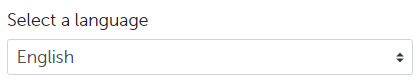
The language selector only appears if your survey contains more than one language, and it offers only those languages the survey has already been translated into. To learn how to add a language to a survey, see How do I translate my survey?
Select the language you want at the top left and enter the subject and body in that language. Repeat this for every further language in your survey. Your employees will then automatically receive the email in the language stored in their employee attribute. If that language is not set up on the survey, the survey’s default language is used instead.
Translate both the subject and the body of every language in full. If either one is missing, employees in that language will not receive your text from the default language — they will receive a generic default text from Honestly.
If your account has already been moved to the new translation area, you will find a “Manage translations” button here instead of the language selector. It takes you to the translation area, where you translate the email subject and body together with all other survey content. A newly added language starts out empty there — use “Suggest translation” or “Suggest all missing translations” to generate automatic suggestions, then review and save them.
The sender, the logo and the button colour live in the account settings and are therefore reserved for administrators. Without admin rights, the links leading there are not shown.
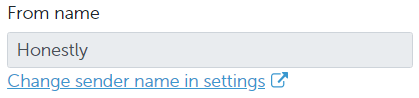
You cannot edit the sender name directly on the “Email Template” tab. Use the “Change sender name in settings” link to jump to your account settings.Under Settings → Email, change the “Sender” field. The name you choose is displayed as the sender of the survey emails. In the same place, “Branding” sets the colour of the participation button in the survey emails, so you can match the email to your corporate identity.
Your company logo is uploaded under Settings → Corporate identity in the “Company logo” field. It is then shown directly in the email that goes out, at 190 pixels wide. For the format and dimensions the file needs, see Set your logo and brand colours.
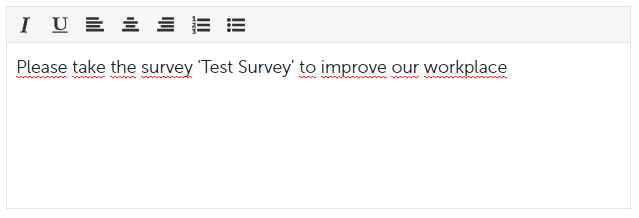
Add a subject so your employees immediately know what the email is about. The subject is limited to 250 characters; a counter shows you how much room is left.And customise the body of the email if you wish to do so. Click into the text field and tell your employees about the new survey. Use “Insert survey name” to add the survey name as a placeholder — this works in both the subject and the body.Your changes are saved automatically. Use “Save” to save manually on top of that.
The invitation email can also be changed while a survey is running (active) — you do not need to deactivate it first. The next time email notifications go out for that survey, the updated text is used. Emails that have already been sent are not affected.If translations are stored for the invitation email, you need to update those as well. This too does not require deactivating the running survey.
Use the “Send Test E-Mail” button at the top right of the tab to send yourself the email with the settings currently saved, and check the result in your own inbox. The test is sent in whichever language is currently selected — for multilingual surveys, check each language separately.These articles may also be of interest to you: