

Steps to restart a survey
1. Select the survey to reopen- Navigate to your survey list and select the survey you wish to restart.
-
Make necessary adjustments, such as:
- Survey name (especially if past dates were mentioned)
- Welcome message
- Thank you message
- Internal description (for tracking past and current send dates)
-
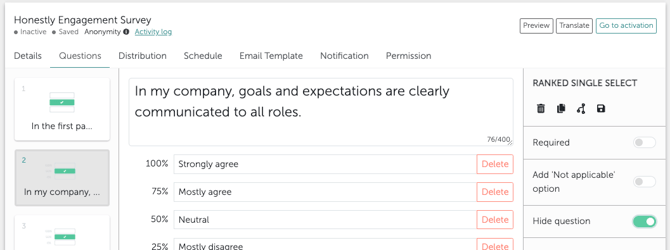
Hiding questions:
- If a question is no longer relevant, do not delete it.
- Instead, toggle Hide Question on the right, to retain past data while preventing participants from seeing it. The question turns grey.
-
Adding new questions:
- Click on an existing question and duplicate it using this symbol on the right side:
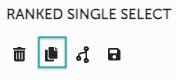
- Edit the duplicated version to create a new question while maintaining the same scale format and answers.
If your survey is multilingual, remember to update any translations.
- New questions will not automatically appear in the existing dashboard.
- The best approach is to delete the old dashboard (this does not delete data) and create a new automatic dashboard, which will include charts for all questions, including those which have been added.
- Remove participants by clicking the X next to their names.
- Add participants from the employee section by searching and selecting them.
- Check and update the email text (e.g., remove outdated references to previous time periods).
- Customize the sender name and subject line if needed.
- Ensure notification settings align with your current preferences (e.g., reminders for non-responders).
- Set an activation date if you want it to launch automatically at a later time.
- Choose whether to deactivate the survey manually or automatically at a specified time.
- Create a new reporting period : To compare results accurately, choose “Create a new survey period” instead of extending just the the previous period.
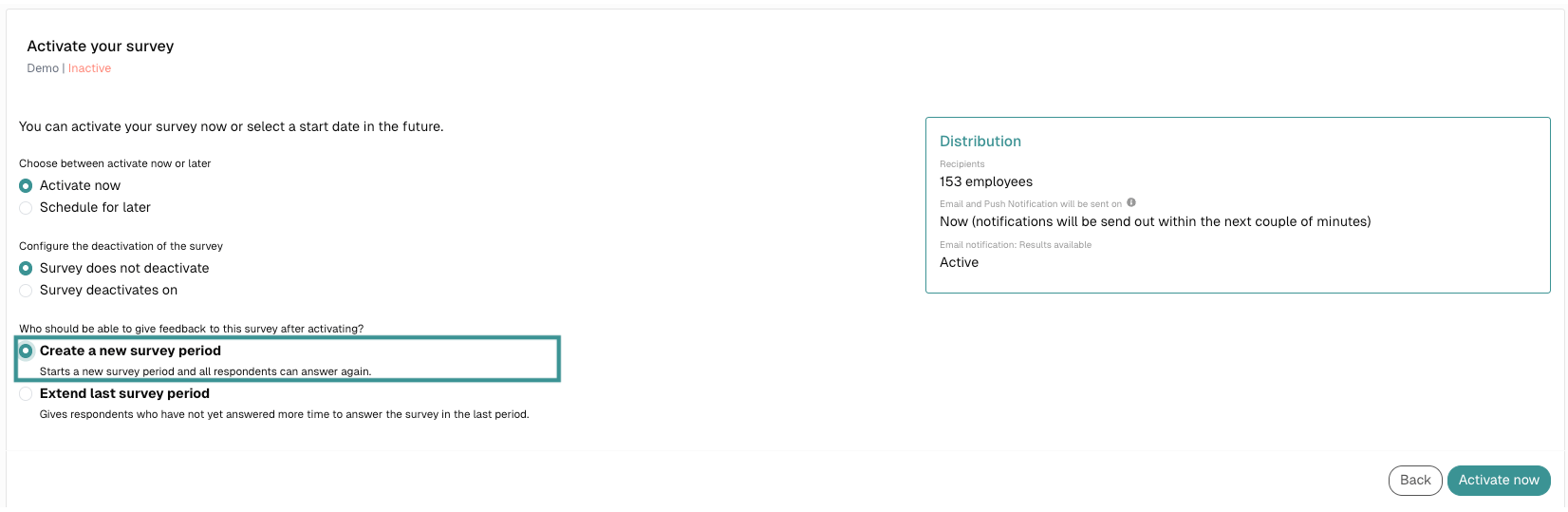
- Verify all settings in the summary box on the right side.
- Click save to complete the process.
Related articles
- How can I reopen a survey?
- How do I extend a running survey or end it earlier?
- How can I hide a question in my survey if I no longer need it/don’t need it at the moment?
- What happens when I delete a question?
- How can I archive surveys which are no longer/not currently in use?
- Can I compare the results of different surveys?