

- Survey properties
- Welcome message
- Thank you message for the survey
- Schedule including time zone and whether multiple responses are allowed
- Email settings
- Notification, reminders and the “results available” option
- Questions
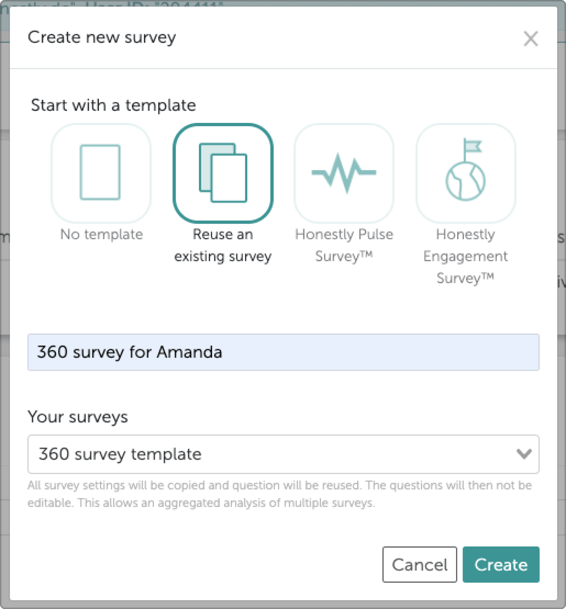
- The questions can only be changed in the template. If changes to the questions are made here, they will be reflected in all other surveys deriving from it.
- If changes are made to other options, such as the email settings, these are not automatically transferred to surveys, which have already been created. All other options must be transferred individually and will not be continually updated between the template and the survey.
If you want to reuse several surveys at the same time, or even reuse the same template 50 times, you can also do this via an Excel upload. Find out more about that here.
Another function: Change template for an existing survey
It could be helpful to create templates for different time zones and if a certain employee changes their location, to move his survey to that location/time zone. In this case, one could create a master template with the respective survey and create further templates from this template for each existing time zone.
To move the survey to the new time zone, you can do the following:
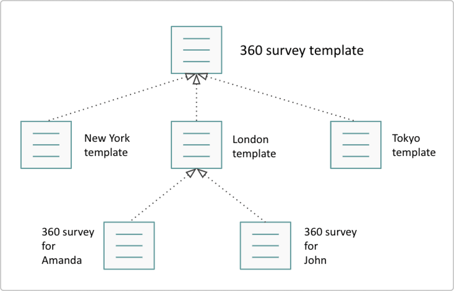

Surveys can only be assigned to another template if the following is true:
- The survey is deactivated beforehand.
- The survey can only be transferred to another template if it comes from the same master template.
- The survey must not be archived.
- Survey properties
- Welcome message
- Thank you message
- Schedule including time zone and whether multiple responses are allowed
- Email settings
- Notification, reminders and “results available” option.