How do I branch questions correctly and what do I gain from branching?
Go to Surveys ↗ · Opens the webapp — please log in firstHow do I branch questions correctly and what do I gain from branching?If you want to get more information about a question if the answer is negative, you can ask the employee a follow-up question by branching the answer. In this question you can ask why the employee is dissatisfied or what you have to adjust from the employee’s point of view to make him more satisfied.
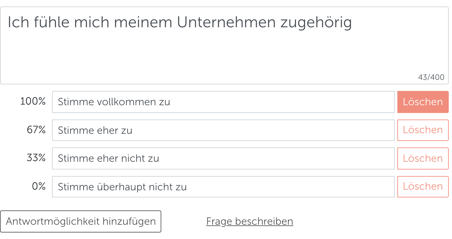
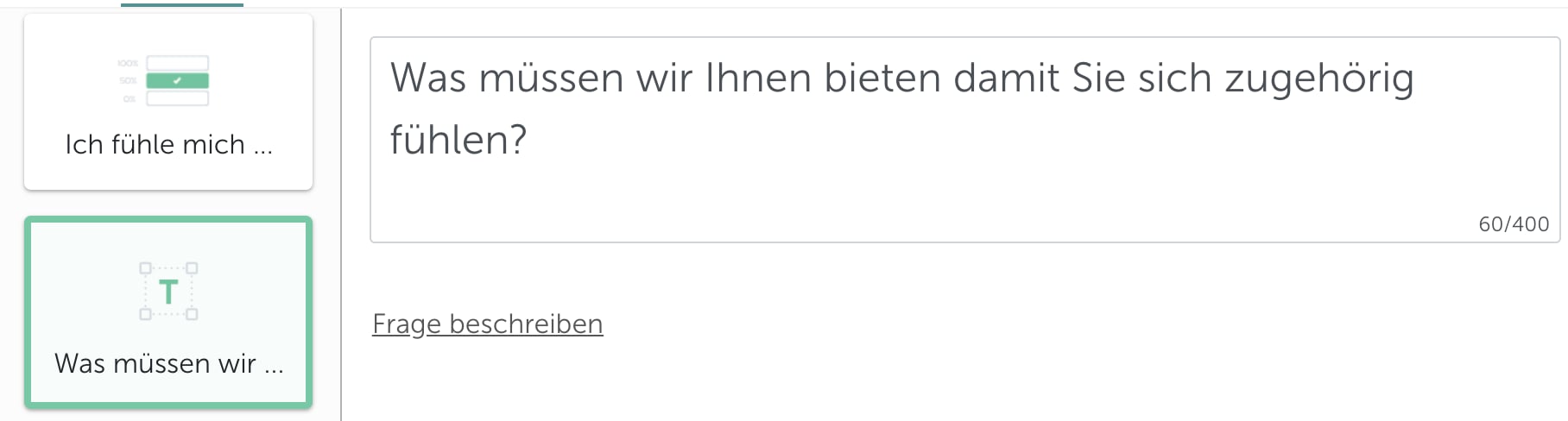
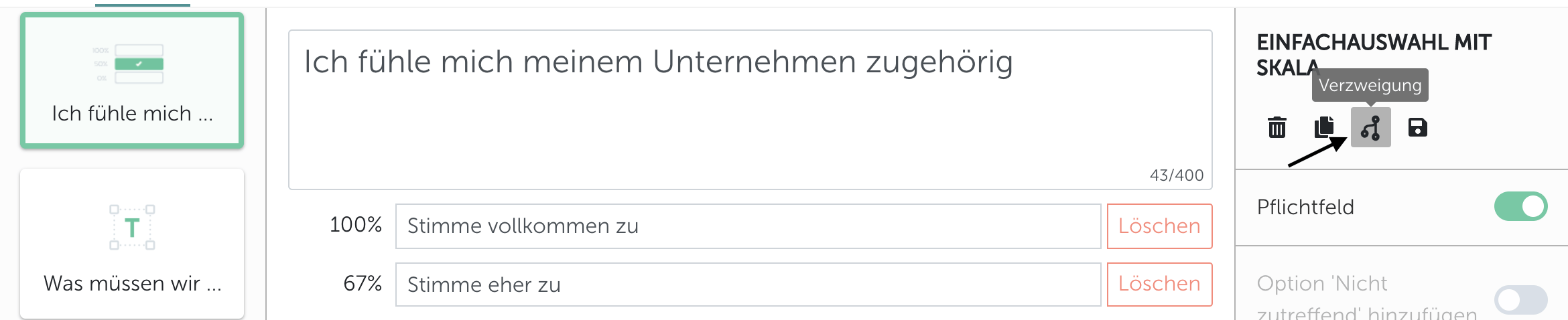
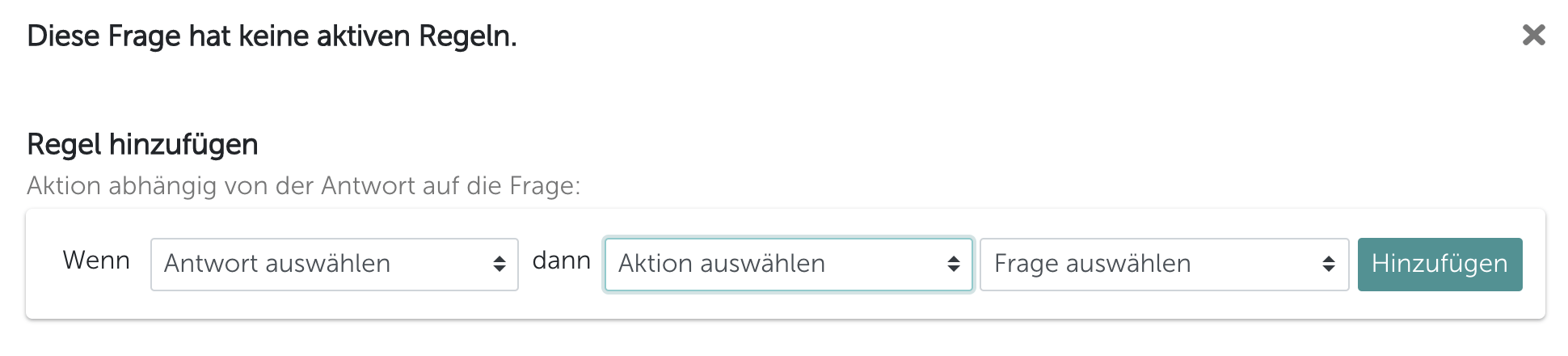
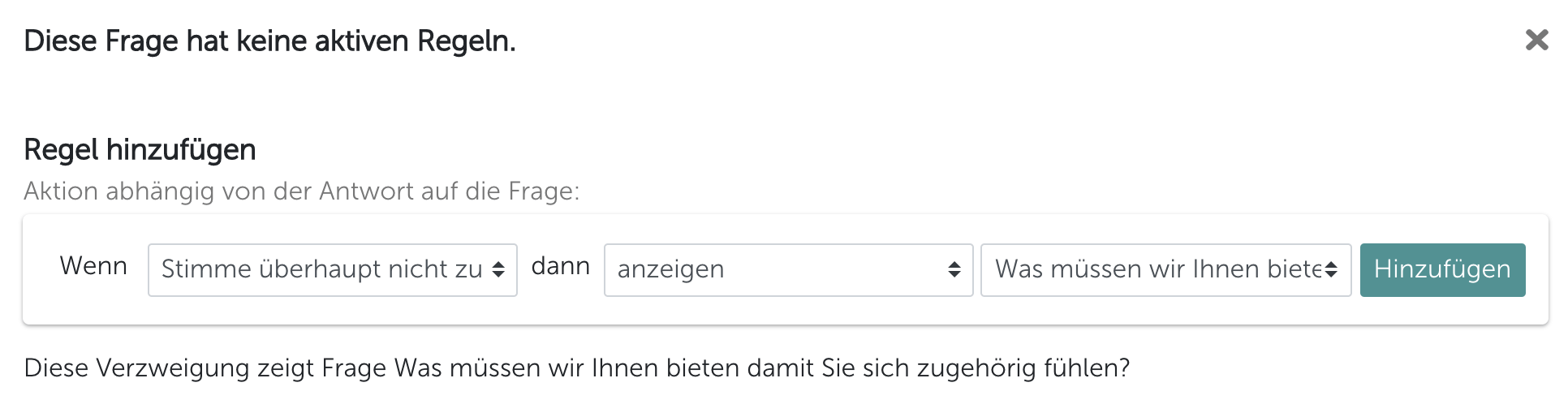
To create a branching question, several steps are needed in the creation of your questionnaireCreate a question such as.Without branching you would get one of the 4 answers without any further information, if you want to have more information if the MA answers with “Rather disagree” use a rule that will prompt the MA to a follow-up question.To do this create another question as an “open text field” like in this exampleNow go back to the question you asked before and activate the branchUse the “Branch” option, an overlay will openIn this step you select an answer option under the item “If” here you get the answer options of the question asked displayed in this case
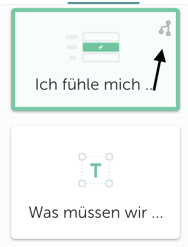
Agree completely, Agree rather, Disagree rather, Disagree not at all“Then” select what should trigger which answer in this example ” Don’t agree at all”, the MA should get the question “What do we have to offer you so that you feel you belong?” displayed.The finished rule should then look like this:In the final step, click on “Add”, this will assign the new rule to the question.Branched questions are visually displayed in the overview.Done, you have now successfully completed all the steps.
The advantage is that your employees now have the opportunity to provide you with further information about why they are very satisfied, for example, or why they are not satisfied.
For you and your company, both pieces of information are very important and give the employee another chance to anonymously tell you how they feel or what they are feeling at to rate you positively.
Answer branching reacts to what someone has just answered. The same panel holds a second kind of rule that works differently: it decides whether a question is shown at all, based on who is taking the survey, before they have answered anything.Open the question’s Branch Question panel. Below the answer rules you will find the section Only show this question if the following rule applies:.A rule is built from three parts:
Employee attribute or Survey property in the left dropdown
the comparison, which is always equals
the value: one attribute value such as a single department, or one survey property option
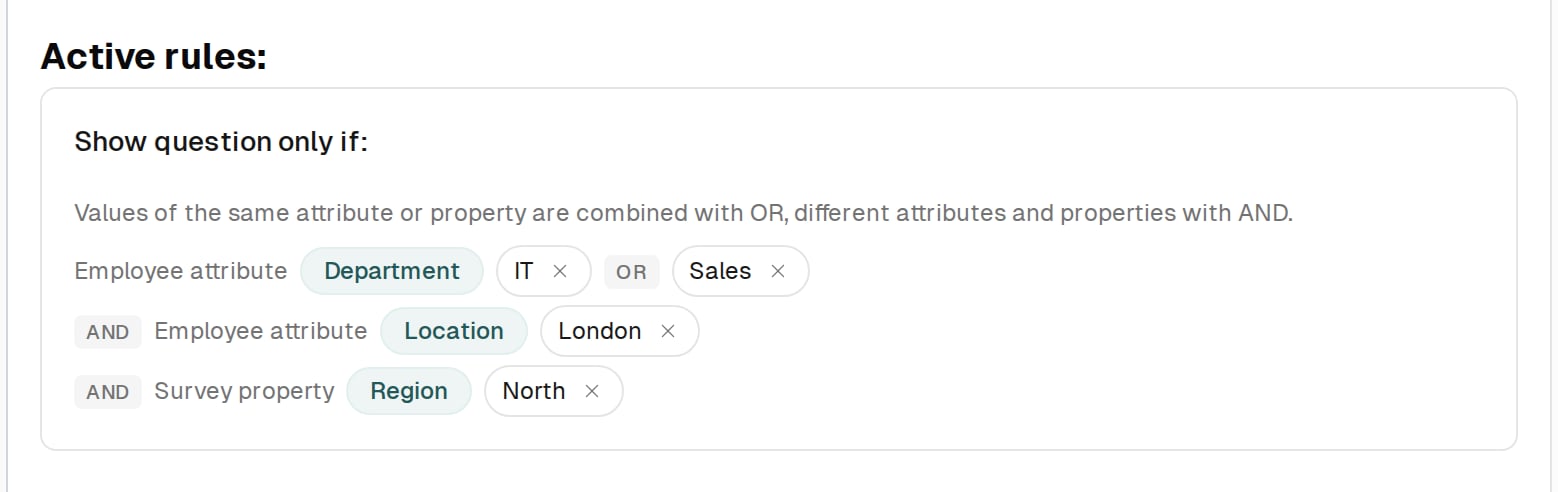
Click Add. The rule then appears in the card Show question only if:. It groups the rules by attribute and property: one row per attribute or property, the values within a row joined by OR, the rows joined by AND. The × next to a value removes that one rule again.A question carrying such a rule stays hidden from everyone it does not match. Employees who have no value at all for the attribute named in the rule do not see the question either.
They can only show a question. Making a question mandatory, hiding an answer option and finishing the survey are available in answer branching only.
The comparison is always equals. There is no “does not equal”.
Each rule holds exactly one value. To allow several values of the same attribute, add one rule per value.
They are also available on questions that cannot be branched by their answer. On an NPS or a free-text question, Only show this question if the following rule applies: is the only section in the panel.
You can add as many rules as you like to the same question, and such a rule can sit alongside ordinary answer branching on that same question.Several rules are combined per attribute or property:
Values of the same attribute or property are combined with OR. Department equals IT together with Department equals Sales reaches everyone in IT or in Sales.
Different attributes and properties are combined with AND. Department equals IT together with Location equals London reaches only people who work in IT and are based in London.
Both combine: Department equals IT, Department equals Sales and Location equals London reach people in IT or Sales who are based in London. The hint below the card title in the panel repeats this rule.
Employee attributes are not known for anonymous participation links, so a question gated by an employee attribute rule stays hidden there and in the preview. Check such questions with a real test participant instead.
Survey property in the left dropdown gates the question by a property of the survey itself rather than by the person answering it. The options come from the properties created under Account Settings → Survey properties and assigned to the survey in its Details tab. The dropdown only offers this choice when at least one survey property option is available.This helps when the same questionnaire runs for several sites or business units: the question then appears only in the surveys carrying the option you chose.The same combination rule applies: Region equals North together with Region equals South shows the question in the surveys of either region, and a rule on a second property narrows that down further. Survey property rules and employee attribute rules on one question always apply together: the question appears only where both are met.For the most common case, showing a question to one employee group, Group-specific question walks through the steps. Survey properties explains what survey properties are good for.