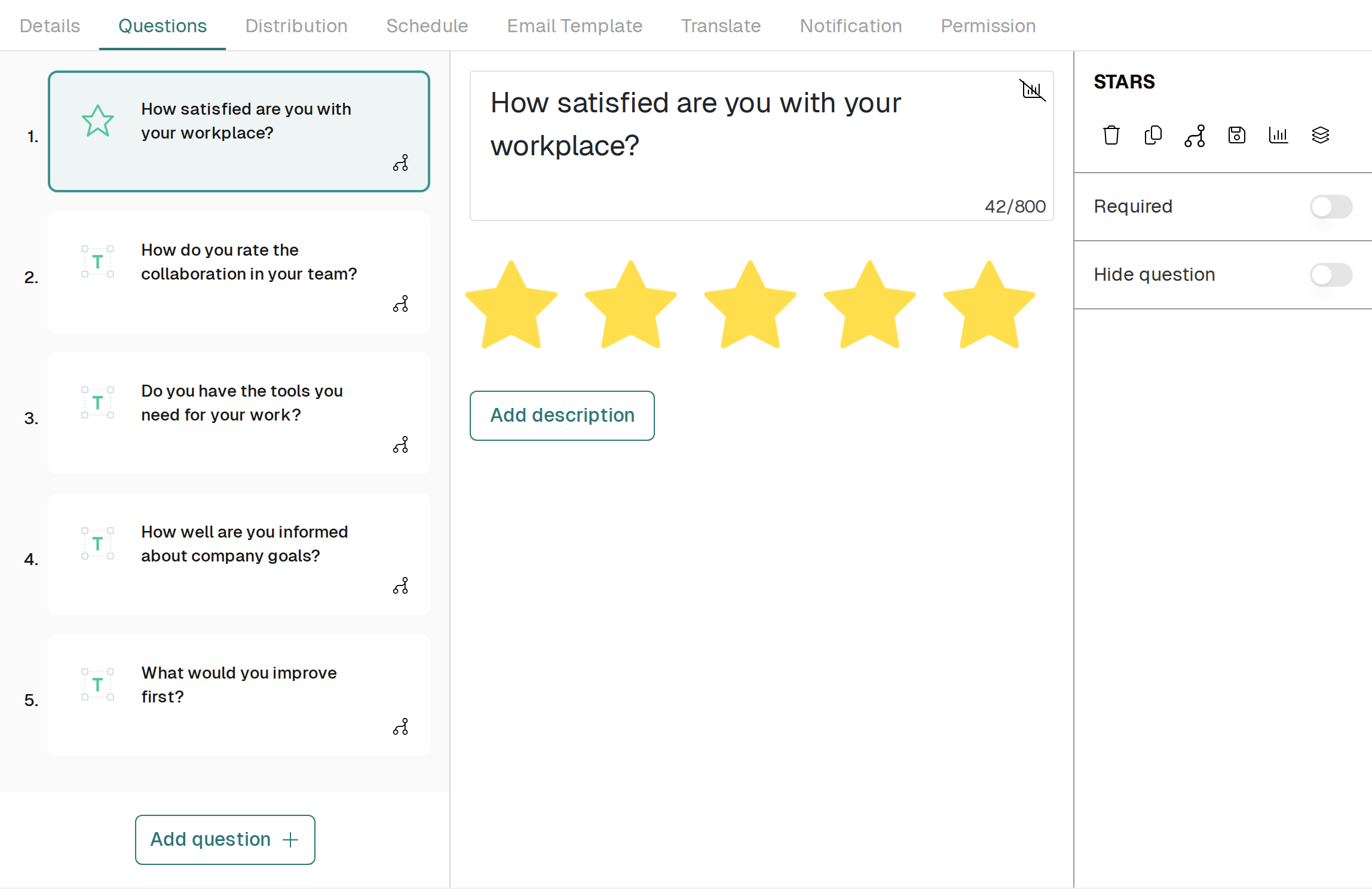

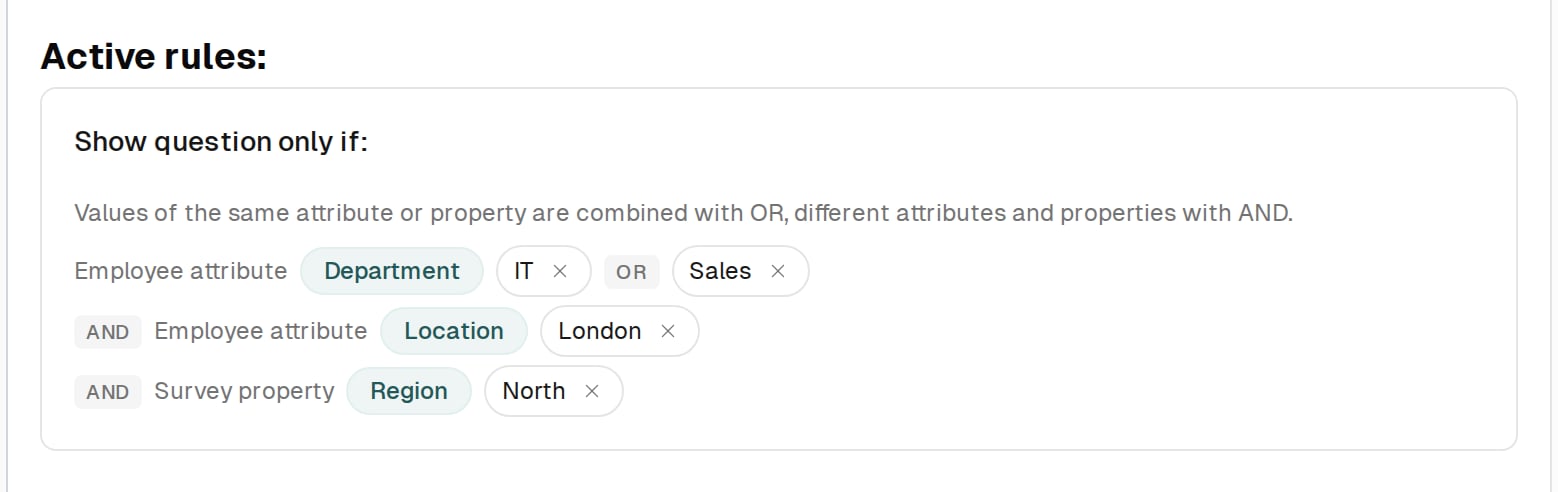
Go to Surveys ↗ · Opens the webapp — please log in first It may be that you create a survey which has some questions which are only applicable to certain employees. In this case, just follow these steps: In the “Questions” section of the survey you are creating/editing, click on the “Branch Question” icon to add conditions to this question: The Questions tab with the Branch Question icon on each question Then, select “employee’s attribute” from the drop-down list and then specify which employee group should see the question in the right-hand drop-down list as below and click “Add” to save the condition: A new rule: Employee attribute equals Department: Sales, next to the Add button Rules on different groups are combined with AND. For example, the following rules show the question to people in IT or Sales who are based in London, and only in surveys that carry the survey property option North: The Show question only if card with Department IT or Sales, and Location London, and survey property Region North
You can add several subgroups of the same group, one rule each. They are combined with OR: Department equals IT and Department equals Sales show the question to everyone in IT or Sales.
Once you are happy with the rules you have added to the question, click “Save” to save your changes.