

Honestly Server
Hostname: import.honestly.com Port: 22 Target folder:/upload/ (the root directory is read-only)
Target path: /upload/surveys.csv
Username: import-surveys-<account-id>
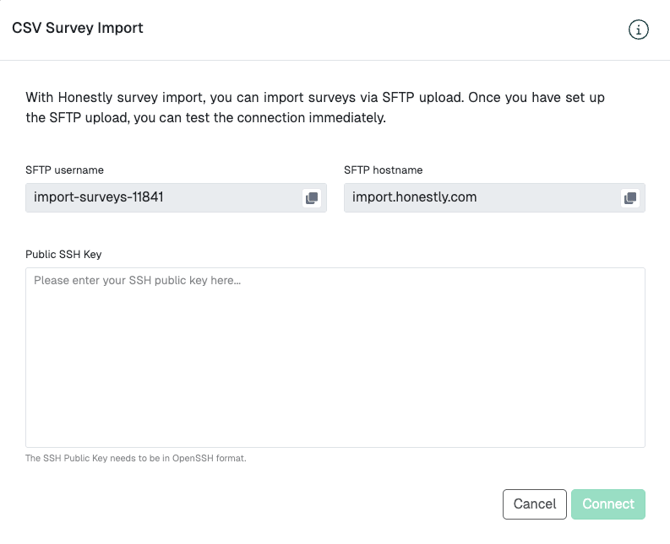
You do not need to request <account-id> from us. Honestly fills it in for you: open the CSV Survey Import window and you will find the complete username under SFTP username and the server under SFTP hostname, each with a button that copies the value to your clipboard.
This is an example screen of an internal account:
Upload the file to the upload folder
After you log in, the root directory/ contains only the upload folder. The root directory is read-only: the file has to go directly into the upload folder — not into the root directory and not into a subfolder.
Full target path: /upload/surveys.csv
- WinSCP or another SFTP client: after logging in, open the
uploadfolder first, then drag the file into it. - Script or automated transfer: set the target path to
/upload/surveys.csv.
If WinSCP reports “No such file or directory” and “Error code: 2” when uploading (some clients report “Permission denied” instead), the file was placed in the root directory instead of the
upload folder. Your connection and SSH key are working in that case. Upload the file again to /upload/surveys.csv.Authentication
Authentication works via passwordless authentication (ssh key authentication). Please generate a public key and set it while setting up the survey import integration. The public key must be in OpenSSH format — a single line that begins with the key type, for example ssh-ed25519 or ssh-rsa. Ed25519, ECDSA and RSA keys are all accepted; we recommend Ed25519. Example public key fileCSV file
The file name must be surveys.csv. The file must be encoded with the UTF-8 character set without BOM. The data must be separated with a comma. The data must be enclosed in double quotes. The first line of the file must contain the column names. The order does not matter.Required columns
The following columns must be included in the CSV file, including those whose values may be left empty.Updating existing surveys
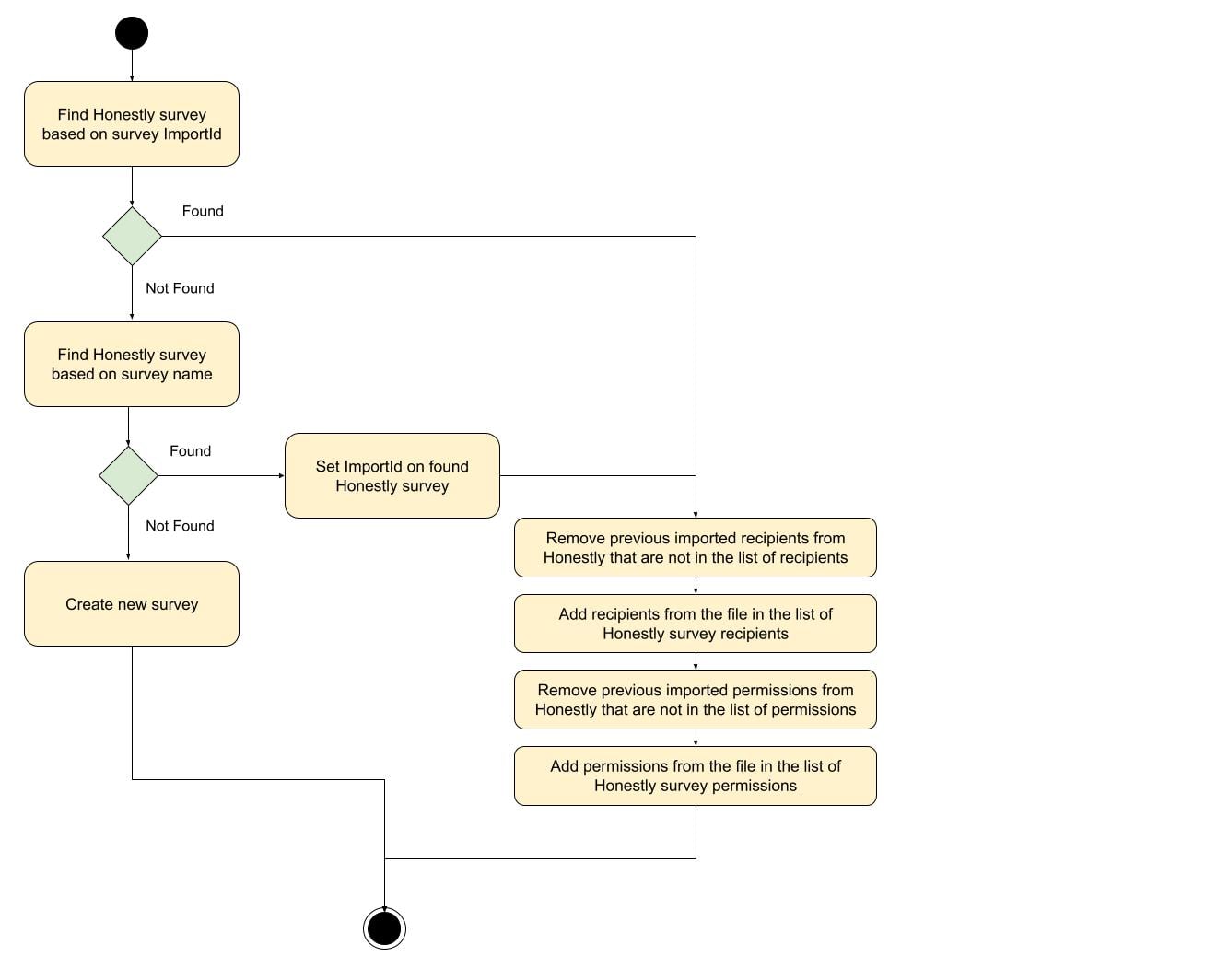
If the import finds an existing survey – first by ImportId, otherwise by SurveyName – it does not create a new one. Instead it updates exactly three things: the welcome message, the recipients and the permissions. The thank-you message, email subject and text, reminders, schedule, status and dates stay as they are. Welcome message The welcome message is set again on every import, whether the WelcomeMessage column is filled or not:- WelcomeMessage empty: every language of the survey receives the current welcome message of the template the survey was created from, in exactly that language. Languages the survey does not have are not added.
- WelcomeMessage filled: the same text is written into every language of the survey.
When updating, always send the complete RecipientEmployeeImportIds and PermissionEmployeeImportIds. To the import, an empty column means “nobody” and removes every recipient and permission it added before.
Optional additional survey properties
Based on the configuration of survey properties in the web application, additional survey data can be included to receive more detailed insights. Therefore the CSV file needs to be extended with these additional columns in String data format. The column name needs to match the survey property name. Each value may be at most 100 characters long. Properties are set when a survey is created and are not changed for existing surveys. On the web application the user can select which survey data should actually show up as a filter on the dashboard.Other Conditions
- If the reused survey template name is not found, no survey will be created
- If columns that should not be empty are left empty, the survey will not be created or updated
- Recipients and permissions are updated for archived and active surveys alike
- For existing surveys, only the welcome message, recipients and permissions are updated (see “Updating existing surveys” above)
Import flow
- activation date in the past
- The survey will be activated in the next few minutes and will go out when the survey is open
- If the schedule setting of your template is already over, then the survey will be sent out next week
- activation date in the present week
- The survey will be activated in the next few minutes and will go out when the survey is open
- If the schedule setting of your template is already over, then the survey will be sent out next week
- activation date in the future
- The survey will open on the exact date sent via column activation date
- If the schedule setting of your template is already over at that time, then the survey will be sent out the following week
- activation date in the past
- The survey will be activated in the next few minutes, only if the survey is in the same week as now
- If the schedule setting of your template is already over, then the survey will be sent out in 2 weeks
- Example: you activated the survey for week 1 but it is already week 2, then the survey will go out in week 3
- activation date in the present week
- The survey will be activated in the next few minutes
- If the schedule setting of your template is already over, then the survey will be sent out in 2 weeks
- activation date in the future
- The survey will open on the exact date sent via the column activation date
- If the schedule setting of your template is already over at that time, then the survey will be sent out in 2 weeks
- activation date in the past
- The survey will be activated in the next few minutes and will go out when the survey is open
- If the schedule setting of your template is already over, then the survey will be sent out in the next month
- activation date in the present month
- The survey will be activated in the next few minutes and will go out when the survey is open
- If the schedule setting of your template is already over at that time, then the survey will be sent out the following month
- activation date in the future
- The survey will open on the exact date sent via the column activation date
- If the schedule setting of your template is already over at that time, then the survey will be sent out in the next month
- I created a survey with an activation date today
- The survey will be activated in the next few minutes
- activation date in the future
- The survey will open on the exact date sent via the column activation date