

Key Features
- Survey notifications delivered via Microsoft Teams messages.
- Matching of Honestly users to Teams accounts via email.
- Simple setup via Microsoft AppSource.
Prerequisites
- Admin privileges to add apps to your Microsoft Teams environment.
- Employees must have Honestly accounts with email addresses that match their Teams profiles.
Installation Steps
Individual Installation via AppSource:- Visit Microsoft AppSource.
- Search for the Honestly app.
- Click “Get it now” and follow the prompts to add it to your Teams environment.
- Approve any necessary permissions to complete the installation.
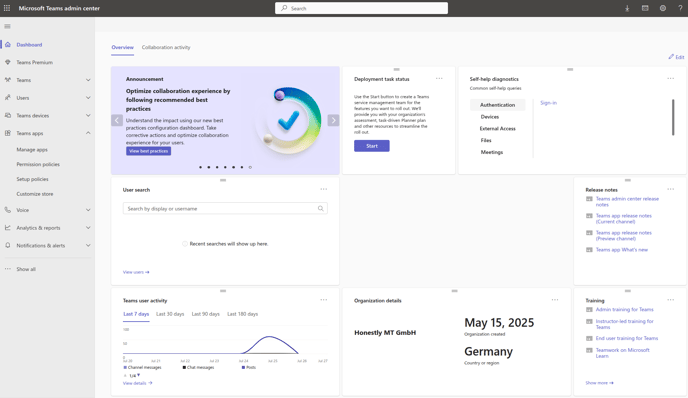
- Access the Teams Admin Center:
-
Manage Setup Policies:
- Navigate to “Teams apps” > “Setup policies”.
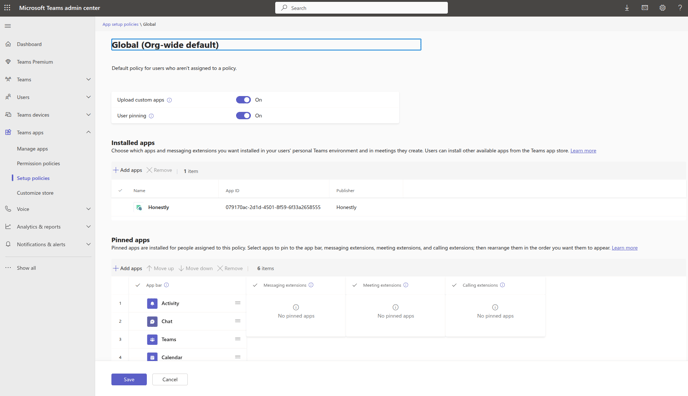
- Edit the existing global policy (applies to all users) or create a new custom policy.
-
Add Apps:
- Under “Installed apps,” select “Add apps”.
- Search for the Honestly app and select it.
- Click “Add”.
-
(Optional) Pin Apps:
- Under “Pinned apps,” select “Add apps”.
- Search for the Honestly app and select it.
- Click “Add”.
-
Apply the Policy:
- For custom policies, assign them to the desired users or groups.
- Global policy changes apply automatically to all users.
-
User Experience:
- Users will see the Honestly app in their Teams client as an installed or pinned app, depending on policy settings.
- Users are synced during the initial app installation.
-
Automatic sync runs twice a day:
- At 3:55 AM and 3:55 PM (CET/CEST).
- After installation, Honestly will automatically send messages to matched users when they are invited to participate in surveys.
- Survey reminders will be sent in the same manner.
- Not receiving messages? Confirm email matching between Honestly and Teams accounts.
- Setup issues? Verify admin rights in your Teams tenant.
- Notifications are only sent to users included in survey campaigns whose emails match between Honestly and Teams.
- Honestly does not access or transmit any other personal data through Teams.