

Login and employee import are separate
Entra can do two different things with Honestly, and this article covers only the first:- Login (SSO) — what this article describes. Honestly’s Enterprise App from the Entra gallery signs people in via SAML.
- Employee import — a separate connection under Menu → Integrations, on the Azure AD tile. You set it up on its own with Connect, and it runs through our partner Kombo. See Sync with HR system.
For support, the error message tells you which side to look at. Not authenticated. is always a login (SAML) problem and never a consequence of the import. A person who is missing or was not imported gets User does not exist. Cannot fetch employees from API is only an import error and has nothing to do with login.
Adding Honestly from the gallery
- Sign in to the Microsoft Entra admin center as at least a Cloud Application Administrator.
- Browse to Entra ID > Enterprise apps > New application.
- In the Add from the gallery section, type Honestly in the search box.
- Select Honestly from results panel and then add the app. Wait a few seconds while the app is added to your tenant.
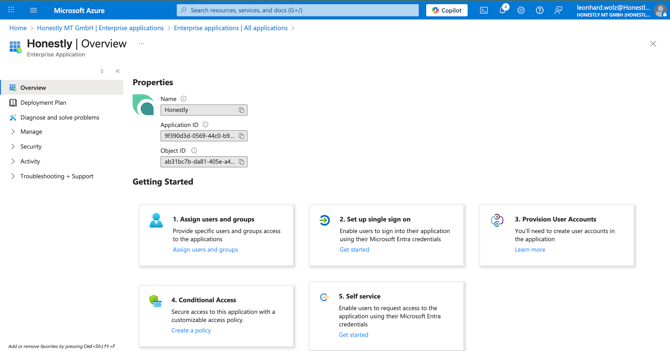
- Open Honestly Enterprise Application and select ‘2. Set up single sign on’
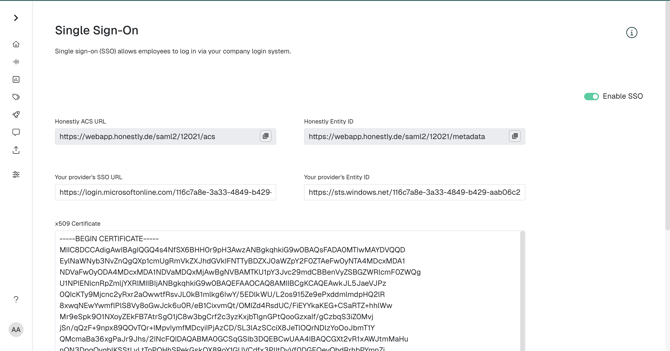
1. Copy Honestly field ‘Honestly Entity ID’ to Azure field ‘Identifier (Entity ID)’
2. Copy Honestly field ‘Honestly ACS URL’ to Azure field ‘Reply URL (Assertion Consumer Service URL)’
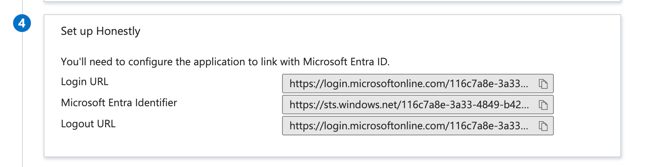
 7. In Azure:
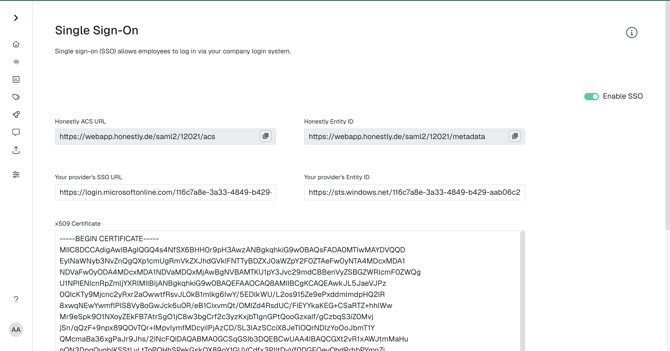
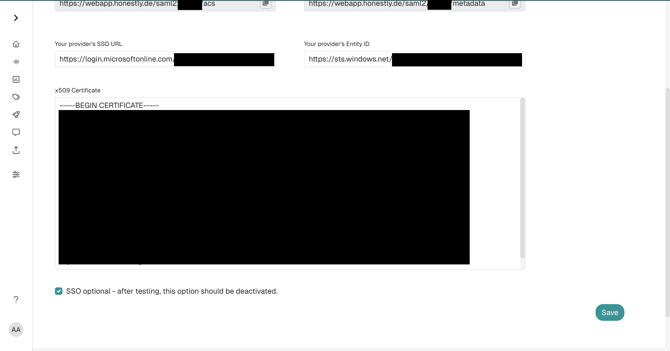
1. Copy Azure field ‘Login URL’ to Honestly field ‘Your provider’s SSO URL’
2. Copy Azure field ‘Microsoft Entra Identifier’ to Honestly field ‘Your provider’s Entity ID’
-
- Download SAML Certificate ‘Certificate (Base64)’.
- Open with text editor and copy contents(including ‘-----BEGIN CERTIFICATE-----’ and ‘-----END CERTIFICATE-----’ to Honestly field ‘x509 Certificate’
Name ID: send the email address
Honestly identifies the person who signs in by the Name ID in the SAML response, and it expects that Name ID to be their email address — the same address they use as a user in Honestly. In the Honestly enterprise app in Entra, open Attributes & Claims and set Unique User Identifier (Name ID) to the Email address format with the source user.mail. Entra’s default is user.userprincipalname. If the value it sends is not the user’s email address, or does not match the email address stored in Honestly, sign-in fails with Not authenticated.Leave token encryption turned off in the Entra enterprise app. Honestly reads unencrypted SAML assertions; it cannot open encrypted ones, so an encrypted response is rejected.
User and group assignment (important)
For your SSO integration to work correctly, you need to assign all relevant users and/or groups to the Honestly app in your identity provider (in Microsoft Entra ID). Only users and groups that are explicitly assigned to the SSO setup will be able to sign in to your Honestly organization. Make sure that all roles that require access to Honestly (for example, admins, HR, managers, employees) are correctly assigned in the identity provider. If assignments are missing, affected users will not be able to log in, even if SSO is technically configured correctly.Assigning a user in Entra is only half of the requirement. SSO does not create Honestly users. A person can only sign in if they already exist as a user in the Honestly account. If they are assigned in Entra but not yet a user in Honestly, sign-in ends with User does not exist.
Two ways to sign in
With SSO, people can sign in to Honestly in two ways. Both work with the same setup; you don’t have to choose one.Honestly-initiated SSO
Sign-in starts on the Honestly login page.- The person enters their email address and clicks Login.
- Honestly sends them to Microsoft Entra ID, where they sign in.
- They don’t need a Honestly password.
Identity provider-initiated SSO (IdP-initiated)
Sign-in starts in Microsoft Entra ID, not in Honestly.- The person clicks the Honestly app in their Microsoft app portal (My Apps) or opens the User access URL.
- Entra passes their email address to Honestly automatically.
- They enter neither an email address nor a password and land directly in Honestly.
For a click on the Honestly app in Entra to sign people in directly, leave the Sign on URL field under Basic SAML Configuration empty. If a URL is entered there, Entra sends the person to the Honestly login page instead, where they have to type their email address after all. Signing in from the Honestly login page works without that entry too.
When sign-in doesn’t work
Start in Entra. Open the Honestly enterprise app, go to Single sign-on and use Test single sign-on. Entra shows the exact AADSTS error, which is the fastest way to the cause. If the response reaches Honestly, Honestly shows one of these four messages:When Entra rolls its signing certificate, the new certificate has to be saved in Honestly again under Settings → Single Sign-On → x509 Certificate. Until it is, sign-in ends with Not authenticated.