

Turn the option on
- Open your survey and go to the Questions tab.
- In the list on the left, click the Ranked Single Select question.
- On the right, switch Required off if it is on.
- Switch Add ‘Not applicable’ option on.
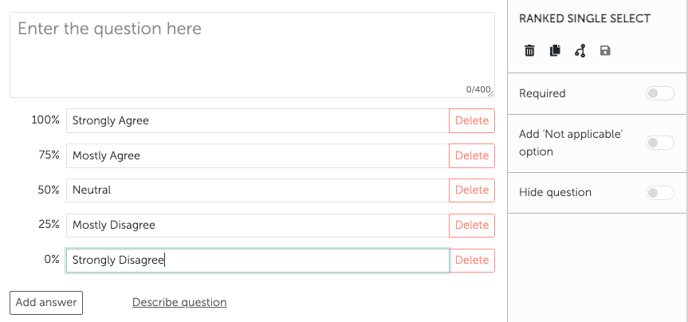
When the option is available
- Only on Ranked Single Select. Stars, Smiley faces, Net Promoter Score (NPS) and the other question types don’t have the toggle.
- Not together with Required. While Required is on, Add ‘Not applicable’ option is locked — and the other way round. A question that must be answered allows no way out.
- Not when branching makes the question mandatory. If a branching condition uses make the following mandatory on the question, Not applicable is not shown to those participants.
What participants see
An extra Not applicable button appears below the answer options. Its text is fixed and can’t be edited. It is shown automatically in the language the person takes the survey in. When someone chooses Not applicable, no answer is saved for that question. Any answer option they had clicked before is cleared.How it affects your results
Not applicable counts like a skipped question. It is not included in the average, the median or the distribution of answers, and it doesn’t appear as an answer of its own in your results.This way, people who can’t judge a question don’t distort the result — for instance by picking the middle of the scale for lack of a better choice.