

Where to find Frank
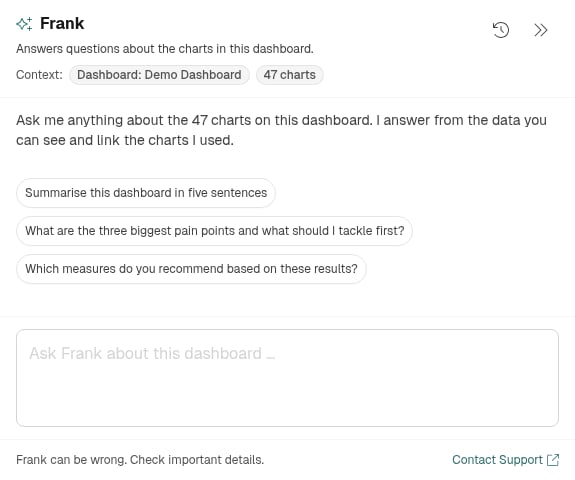
Click the round button with the AI icon in the bottom right corner (Open Frank). Frank’s panel opens on the right. If there is enough room, the page moves aside; otherwise the panel sits on top of it. Drag its left edge to change its width. The double arrow in its top right corner (Minimize panel) minimizes it again. What Frank knows depends on the page you open him on. The chips in the input area show you:- On a dashboard, Frank reads the charts of the open dashboard, a selection of the comments and the active filters. You see the dashboard’s name, the number of charts and the filters you have set.
- On every other page, Frank knows the page you are on and answers questions about using Honestly. As an Admin or Manager, you can also ask him about your surveys there, such as their questions, schedule or recipients. He has no results or scores there – for those, open him on a dashboard.
If you don’t see a button for Frank in the bottom right corner, Frank has not been enabled for you yet.
What you can use Frank for
Questions about a dashboard
Open a dashboard, set the filters you are interested in, and ask Frank. He answers from the charts you can see on the dashboard. For Admins, Managers and Analysts, he can also read scores from the dashboard’s surveys that no chart shows – always within the filters and time period you have set. For a different group or period, change the filter. Below each answer, charts read expands the list of charts Frank based it on and shows how many comments he read. When there are many comments, Frank reads a sample and tells you at the start of his answer how many he read. Clicking a chart takes you to it on the dashboard. Chart names in the answer text are links too. Copy answer copies an answer. On a very large dashboard, not all charts fit into what Frank can read at once. He then reads as many as he can, and the line below the answer also shows how many charts not read there are. If you ask about one of them, Frank tells you that he hasn’t read it. For questions about those charts, it’s best to open a smaller dashboard with just the charts you care about. For example:- Summarise this dashboard in five sentences
- What are the three biggest pain points and what should I tackle first?
- Which measures do you recommend based on these results?
Your own charts in the chat
Ask Frank to show you something, and he draws a chart right in the conversation – as a bar, line, pie or heatmap chart, for instance. He takes the figures from the open dashboard. Expand chart shows it larger, and Download chart saves it as a PNG image.- Show me the dimension scores as a bar chart
- Compare the departments in a heatmap
Create a presentation
Frank turns the results of a dashboard into a presentation of up to eight slides. The conversation shows the slide headlines; Download presentation gives you a PowerPoint file.- Turn this dashboard into a presentation for the management team
Presentations and charts can only be downloaded if downloads are allowed for you on that dashboard. They are not available to the Report viewer role.
Propose a dashboard
Frank proposes a dashboard for a survey: which questions to show in which views (score, distribution, trend, comments, sentiment or topics, for example) and, if you like, a split by attributes. You can describe exactly what the dashboard should look like:- Which charts, in which order. If you name the charts you want, Frank builds exactly those – in your order and nothing extra.
- How wide. Charts can take up a third, two thirds or the full row, for example a score on the left third and a heatmap on the right two thirds.
- Participation rate. You decide where it goes, whether it appears more than once – say, overall and by department – or whether to leave it out.
- Heatmaps. You can have several, for example one per dimension.
- Combining questions. Frank combines questions into one chart, for example per dimension. On request he also builds an overall score across all rating questions on the same scale. He leaves out NPS questions and questions on a different scale, and tells you which.
- Impact prediction. If you ask about drivers or levers, the dashboard gets an impact prediction.
- Propose a dashboard for the latest engagement survey, split by department
- Create a dashboard for the latest engagement survey: participation rate by department at the top, then for each dimension the score on the left and a heatmap by location on the right
Propose a survey
Frank drafts a survey with you: name, questions, recipients, schedule and invitation email. He can write new questions, take them from a questionnaire you paste in, or pull them from a Honestly template, an existing survey or your question library. He assigns new rating questions to one of your dimensions. If he reuses questions from an existing survey, the results of both surveys can be analysed together. If the name is already taken, Frank picks a free one and tells you. As recipients, Frank proposes all employees or groups by attribute, such as a department – never individual people. The schedule can be one-off, weekly, every two weeks or monthly. The proposal appears as a card with the survey’s name. Show questions and texts lets you check the details. Clicking Create Survey creates the survey and opens it. It is not activated at that point: you check everything and activate it yourself. Frank proposes surveys for Admins and Managers.- Create a survey about team climate
- Turn the last pulse survey into a monthly survey for the sales team
Prepare initiatives
If you explicitly ask him to, Frank suggests up to three initiatives – on a dashboard based on the results, on other pages based on what you describe. Each one appears as its own card; Show details shows the steps and challenges. Open draft opens the form for creating an initiative with the title and notes already filled in. Nothing is saved until you submit the form. Before suggesting a new initiative, Frank checks whether an existing one already covers it, and if so points you to that one instead. You can also ask Frank about existing initiatives on any page, such as what is already planned for a topic. He finds the initiatives you are allowed to see and, if you like, reads one in detail. If you have an initiative open on the Initiatives page, Frank can revise it for you: rephrase, shorten, extend or translate it. He shows his suggestion as a Revised initiative card. Apply changes puts the new title and notes into the open form, which stays open next to Frank’s panel. The change is only saved once you save the initiative. If the initiative is completed or you aren’t allowed to edit it, Frank suggests changes in words only. All of this requires the Initiatives feature to be active in your account.- Which initiatives should we derive from these results?
- Are there already initiatives on team communication?
- Make the steps of this initiative more concrete
Help with using Honestly
On every page, Frank answers questions about how Honestly works, based on the Help Center. Expand sources below his answer to see the articles he used. If Frank names one of your surveys, clicking the name takes you straight to it.- How does this page work?
- How do I share a Dashboard with others?
Dictate a question
Instead of typing, you can speak your question: click the microphone in the input field (Dictate question) and end the recording with Stop recording. Speak in the language you have set in Honestly – it is the only one the recording recognizes. The text appears in the input field, and you can still edit it before sending. The recording is only used to turn it into text; Honestly does not store it. The microphone appears if the Speech-to-text feature is active in your account. The first time, your browser asks whether it may use the microphone.What Frank won’t do
- No individual answers. Frank won’t say who gave an answer or wrote a comment, and won’t help narrow it down through filters or comparisons – not for admins either. If he declines a question for that reason, you see this note below his answer: For privacy reasons I don’t show individual answers, and I won’t narrow them down through filters or comparisons either. Groups that don’t reach the survey’s anonymity threshold are not shown, and Frank doesn’t estimate them either.
- Only what you are allowed to see. Frank works with your role and your permissions: with the data your dashboard shows you, and only with the surveys and attributes you have access to. He doesn’t offer what your role doesn’t allow.
- Nothing without your confirmation. Frank doesn’t change anything himself. Dashboards and surveys are only created once you click Create dashboard or Create Survey on the card. An initiative is only created once you submit the form that Open draft opens. A revision goes into the form with Apply changes and only takes effect once you save the initiative.
- No guarantee of accuracy. The bottom of Frank’s panel reads: Frank can make mistakes. Check figures and statements before you pass them on – the linked charts are the quickest way.
Managing conversations
- New Conversation starts a fresh conversation, for example when you change the subject.
- The clock icon at the top opens Earlier Conversations, where you can pick up where you left off. The list is grouped by date, and you can search it once you have many conversations.
- Delete Conversation permanently removes a conversation and all answers in it, after you confirm.
- Only you can see your conversations.
- If the last message in a conversation is more than 24 hours old, Frank points out that data and filters may have changed since then. For current figures, click Start a new conversation there.
- While Frank is answering, you see what he is doing, such as Thinking, Searching surveys or Calculating results. If he skips a result for anonymity reasons, that shows up there too. Afterwards, the Worked for …, … steps line expands to show the individual steps.
- Frank keeps answering when you minimize the panel. A red dot on the button tells you a new answer has arrived.
- While Frank is still answering, you can already write your next message. It is sent once Frank has finished, and until then you can Remove it.
- Stop request cancels an answer in progress. Your question goes back into the input field.
Tips for good questions
- Dashboard first, then the question. Open the right dashboard and set the filters before you ask. Frank sees exactly what you see.
- Be specific. What are the three weakest questions in the sales department? gets you further than How are we doing?
- Follow up. Frank knows the conversation so far. Just write only for department X, as a heatmap or shorter, please.
- Check proposals. Look at each card carefully before you create anything – and review surveys in the editor before you activate them.
Frank uses AI models from Microsoft in the EU. For him to answer, Microsoft must be approved as a subprocessor for your account. An admin gives consent in the Subprocessors tab of the account settings. The same applies to dictating questions. Learn more in How is AI used in our software?