Requirements for the codes
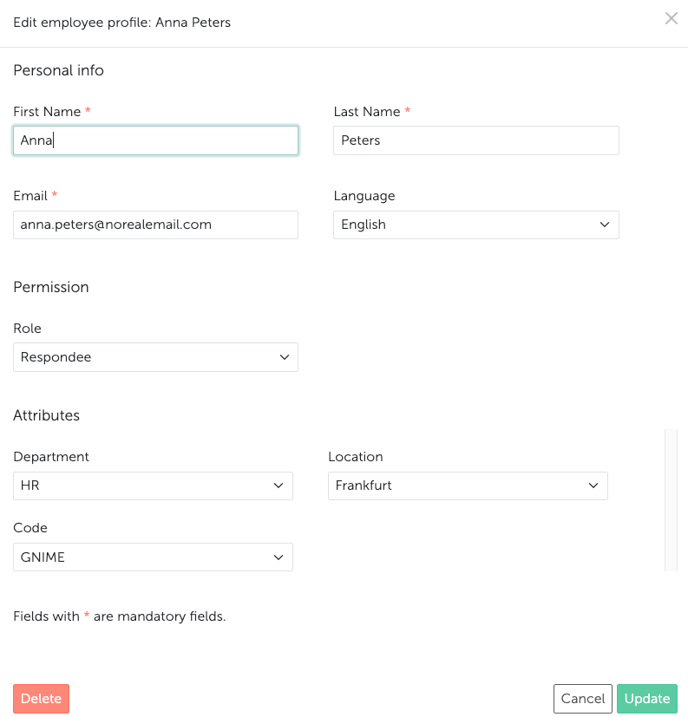
The code is not a field of its own. It is the value of the attribute you picked for code participation — in Account Settings under Code participation it is called the Code-carrying attribute. Honestly never generates codes for you: you assign them and maintain them like any other attribute value.What the system enforces
A code may be at most 100 characters long. That is the only technical limit.What the system does not check
- No minimum length. Even a single character is accepted.
- No character rules. Letters, digits and special characters are all allowed, in any combination.
- No uniqueness. Two employees may carry the same code.
- No expiry date. A code stays valid until you change the value, and it can be used as often as you like, on several devices at the same time.
At login, upper and lower case, accents and trailing spaces make no difference: gnime, GNIME and Gnimé all lead to the same profile. A code does not become safer by being written in capitals.
What we recommend
The system enforces none of this — these are our recommendations for a rollout that runs smoothly:- Randomly assigned codes of at least eight characters are the most secure.
- An existing number such as a personnel or badge number works too, and many customers do it this way: employees already know it, and you don’t have to hand out new codes. The downside: anyone who works out the pattern can guess a colleague’s code.
- Dates of birth or initials are even easier to guess, so don’t use them as codes.
- One code per person.
- Avoid characters that are easily confused, such as 0 and O or 1 and l. Most employees type the code from a printed notice or card.
If two people get the same code
Both of them sign in as the same person. They see the same surveys, and their answers can no longer be told apart afterwards. Honestly points this out as soon as several employees carry the same value: in Account Settings under Code participation you will see Non-unique values found, together with the people affected. Check this before you send out a survey.The access path is not the code
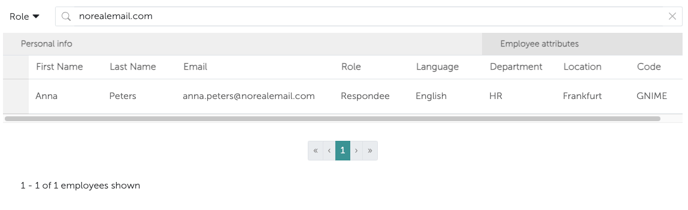
The access path — the part of the access link your employees use to open the survey — follows its own rules: lowercase letters, digits and hyphens only, 3 to 25 characters, and it has to be unique across the system. Those rules apply to the address, never to the codes. It is important that each employee receives a “fake” email, which must be unique. For example: firstname.lastname@norealmail.com Person 1: anna.peters@norealmail.comPerson 2: jack.black@norealmail.com
Person 3: susie.smith@norealmail.com
Person 4: david.jones@norealmail.com If you prefer to manage and upload this via Excel, all important information from your system should be included: