

To import your employees via Excel, go to the “Employees” section and click on “Import Employees”:

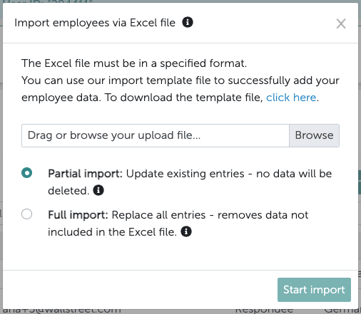
What the full import deletes
An employee is deleted only if all three of these are true:- They were added via Excel (source Excel).
- They have an ImportID.
- That ImportID is not present in the uploaded file.
- employees added manually,
- employees from SFTP/CSV, Personio or Kombo,
- Excel employees without an ImportID,
- the last remaining admin of your account.
Rows skipped because of errors during the import still count as present in the file and protect that employee from deletion.
What “deleted” means
A deleted employee is marked as deleted and removed from the employee list, their login is deactivated, and any running personal survey assignments are ended. Survey answers they already gave are retained and stay in your dashboards. Their name and email address are only anonymised 365 days after deletion. The full import is therefore not a tool for immediate GDPR deletion. You can see how many employees a run deleted in the Import Details, under Deleted. By clicking on click here , you can download our template file and adjust your data according to the examples given: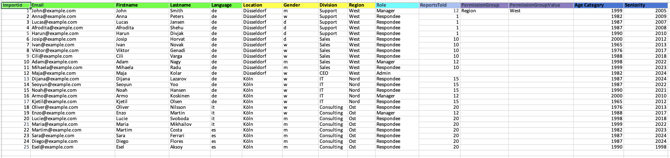
Required Columns
The following columns must be included in the Excel file.Column names must be entered exactly as shown below, or the import will fail.
Caution: The employee’s individual ImportId can no longer be changed once it is assigned in the very first upload. In most cases, the personnel number of each employee is used.
Further Note: Always format the ImportID as text/string in Excel (ideally the entire column). This ensures that nothing goes wrong during import — for example, leading zeros will be preserved…
The employees’ languages
Optional: Additional Employee attributes
In order to later be able to filter the data you collect and get more detailed insights, you will need to both configure all employee attributes in the Honestly account and then extend the file to include these as additional headings. These attributes will appear as possible filters in the dashboard.Attributes and their values can have a maximum length of 100 characters.
Optional: Roles and access rights
Employees can have access to survey data according to who reports to them using a “ReportsToId”. This can be used in conjunction with access to particular employee attributes, such as locations or departments. If you choose to use “ReportsToId”, “PermissionGroup” or “PermissionGroupValue” columns, it is fine to only enter information for some employees and not for others. The “Role” column however must be completed for all employees.
Use * to give users access to all data.
See more details here in this article: How Do Reporting Structures and Data Permissions Work in Honestly?
Possible roles
Read more about the roles in your Honestly account.
Optional: Age groups and seniority
Employees can now be created in the system with their year of birth and start date; our system generates age groups and seniority groups for you.Example: Age Category 1990 and Seniority 2024 in the import file would then be displayed in our system as follows:
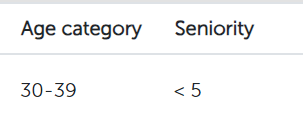
In your import file, the column is headed Age Category – its spelling doesn’t matter, so age category works just as well. After the import, the resulting groups appear in the app under the attribute name Age category. Both refer to the same thing. The Age category and Seniority groups are calculated automatically from the employee’s year of birth and start date.
The system creates the following groups automatically (shown in the app as the Age category and Seniority attributes):
Age category
< 20, 20-29, 30-39, 40-49, 50-59, 60+. Seniority
< 5, 05-09, 10-14, 15-19, 20-24, 25-29, 30-34, 35-39, 40-44, 45+. The 05-09 group is written with a leading zero so that heatmaps and filters list it before 10-14 instead of after the higher groups. Follow these guidelines to ensure your import is successful.