

Before you start
- The Conduct Surveys via Code feature must be active in your account. You can check its status under Settings → Features.
- Only admins can see and edit the Code participation page.
- Your employees exist in Honestly, and each person has their code stored as an attribute value, for example their employee number. How to add them and what applies to the codes is explained in How to add employees without an email to the system?
Set up code participation
If nothing has been set up yet, the page shows Code participation is not yet set up. Click Set up and choose two things:- Access path – the part in front of the domain, for example
companyname. This becomes the linkhttps://companyname.honestly.de. Only lowercase letters, digits and hyphens are allowed, 3 to 25 characters. Each path can only be taken once, and some paths such aslogin,helporwebappare reserved. - Code-carrying attribute – the attribute whose value employees enter to log in, for example the employee number.
Share the link and QR code
Under Access you find everything you hand out to your employees:- Access link – copy it with the copy icon, or click Preview to open the login screen as your employees will see it.
- QR code – use Download PNG or Download SVG to get it as a file, for a notice board or a card, for example.
Customize the login screen
Under Login screen you can adjust three texts per language:- Help text – shown when employees click Help on the login screen.
- Field label – the label of the input field, for example “Employee code”.
- Description – a short hint on where employees can find their code.
- Click Manage languages and pick a language under Add language.
- Switch to the new language in the login screen. Translate or Translate all fields suggests a translation from the default language, which you can review and adjust before saving.
- Manage languages shows how many fields are translated for each language.
Status and warnings
If several employees share the same value in the chosen attribute, the page shows Non-unique values found and lists the people affected. These people cannot sign in unambiguously. Give them different codes.
An attribute that is currently used for code participation cannot be deleted. Choose a different attribute under Code participation first.
Delete code participation
At the bottom of the page you find Delete code participation. To confirm, type the access path. The access link and all login screen texts are removed immediately. This cannot be undone.How your employees take part
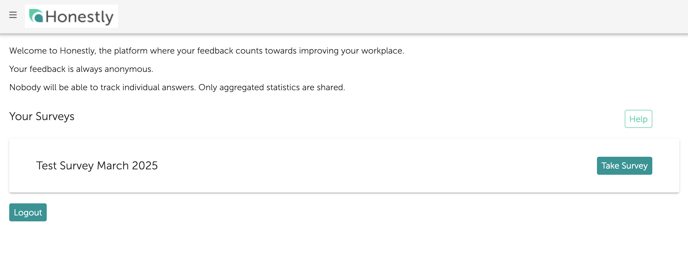
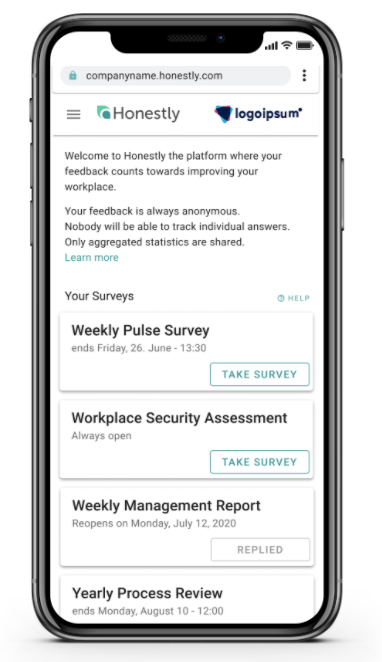
1. Employees open the link or scan the QR code – on a smartphone, tablet or PC.
Related articles
- How to add employees without an email to the system?
- Can the employees also take part in a survey via a link or QR code?
- What are the options for participation in a survey?
- Overview of Feedback Channels at Honestly: Survey Types and Participation Methods
- How do I import or update my employees via Excel?