
Bubble Chart with Topic Drill Down and Sentiment
What is the Bubble Chart?
The Bubble Chart is an interactive visualization that helps you understand how employees feel about different topics in their open text survey responses.
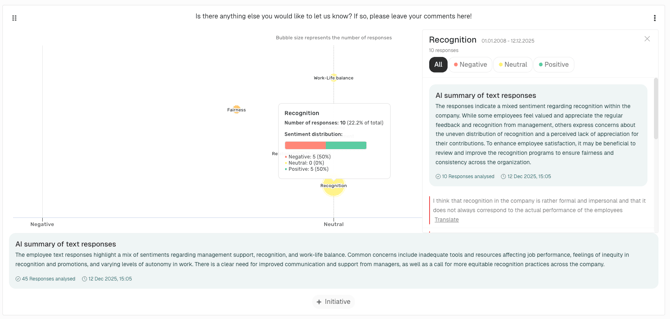
Each bubble represents a topic, showing both how many responses were received and the average sentiment (negative, neutral, or positive).
-
Bubble size → number of responses for that topic
-
Bubble color → overall sentiment (green = positive, yellow = neutral, red = negative)
-
Bubble position → sentiment placement from negative (left) to positive (right)
This allows you to see at a glance which topics matter most and how employees feel about them.
At the bottom of the chart, you will see an AI summary of all the feedback currently included in the chart. This will of course change if filters are applied.
Hover over a bubble to see a summary, like in the image above in the center. This will tell you how many responses were given for that topic and how they were distributed too.
Click on a bubble to see the drill down, like in the image above on the right. You will see another AI summary and all responses, which can be translated. Click on "Negative", "Neutral" or "Positive" to only see those responses with the AI summary too.
How can I create this chart?
Creation (Admin/Manager/Analyst)
- In the side menu
 , first create your categories as explained here.
 - Go back to your dashboard
 and click on + (“Add new chart”).
- Select the Bubble Chart
- Now choose your questions – in this case, the open text fields that should be visualized as a Bubble Chart.
- Click “Save”.

The chart will now appear at the very bottom of your dashboard.
After creation and for dashboard users (Admin/Manager/Analyst/Report Viewer)
-
Open the Bubble Chart in your dashboard.
-
Hover over bubbles to see quick statistics.
-
Click on a bubble to drill down into individual employee responses.
-
All available responses for that topic are shown.
- An AI-generated summary is generated for each drill down
-
Responses are displayed according to user permissions and survey anonymity settings.
-
-
Read the AI-generated summary below the chart for a quick overview of all feedback included.
Note:
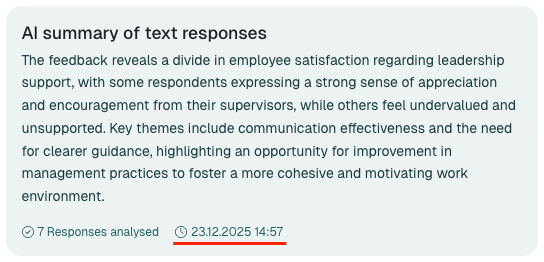
Each AI-generated summary remains available for 8 weeks from the moment you first open it. If new responses are added during this period, the summary will be refreshed automatically.
The summary is personalized and can differ from user to user based on their permissions and survey settings.
A note at the bottom of the AI summary shows the date and time when it was generated.
Why is this useful?
-
Identify sentiment patterns: Quickly see which areas employees feel positively or negatively about.
-
Understand the “why”: Drill down into real employee comments.
-
Prioritize actions: Focus on the topics with the strongest negative sentiment or the most responses.
Permissions & Anonymity
-
Anonymity safeguard: The highest text anonymity threshold of any survey related to questions included in the chart is applied to the entire chart.
-
Permissions safeguard: Only responses that the viewing user has permission to see are included.
Example Use Cases
-
Post-change monitoring: After a new policy or initiative, check how employees react.
-
Trend tracking: Compare work-life balance sentiment before and after implementing remote work.
-
Spotting issues early: Detect emerging concerns in areas like fairness or tools & resources.
👉 Tip: Combine the Bubble Chart insights with your initiative tracking. When you make changes based on feedback, check the chart again to see if sentiment improves.