
How do I backdate employee data?
Backdating lets you correct historical employee attributes and supervisor relationships for surveys that have already been collected. You enable it during a regular employee import and pick a reference date — Honestly then recalculates all survey responses from that date onwards as if the employee data you are uploading now had already been in place at the time.
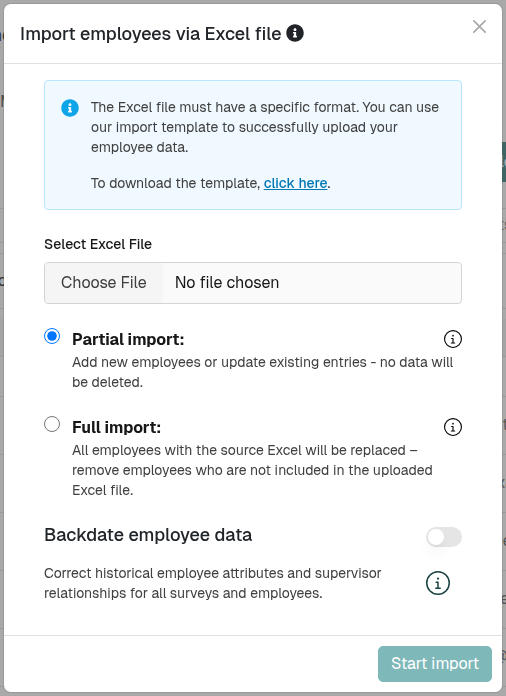
You find the option in the main navigation under Employees → Import Employees, inside the Backdate employee data section of the import modal.
Please note:
- Only admins with permission to manage employees can import data and use backdating.
- Backdating cannot be automatically reversed. Make sure your Excel file is correct before you confirm.
- Only use backdating when previous survey results were collected with incorrect employee information. For normal day-to-day updates (new joiners, role changes going forward), a regular import is enough.
- The reference date cannot be in the future. The time of day is always treated as 00:00.
Step 1: Prepare your Excel file
Before you enable backdating, prepare the Excel file with the corrected employee data exactly as you want history to look. The same rules as for any employee import apply: the ImportId of each employee must match the existing record, and the required columns (Email, Firstname, Lastname, Language, Role) must be present.
If you are not yet familiar with the file format, see How do I import or update my employees via Excel? and Which guidelines should I follow for a successful Excel import? first.
Step 2: Open the Import Employees modal
- Go to Employees in the main navigation.
- Click Import Employees.
- Select your file in Select Excel File.
- Choose Partial Import or Full Import as usual.
The Backdate employee data section appears below the import-type choice.
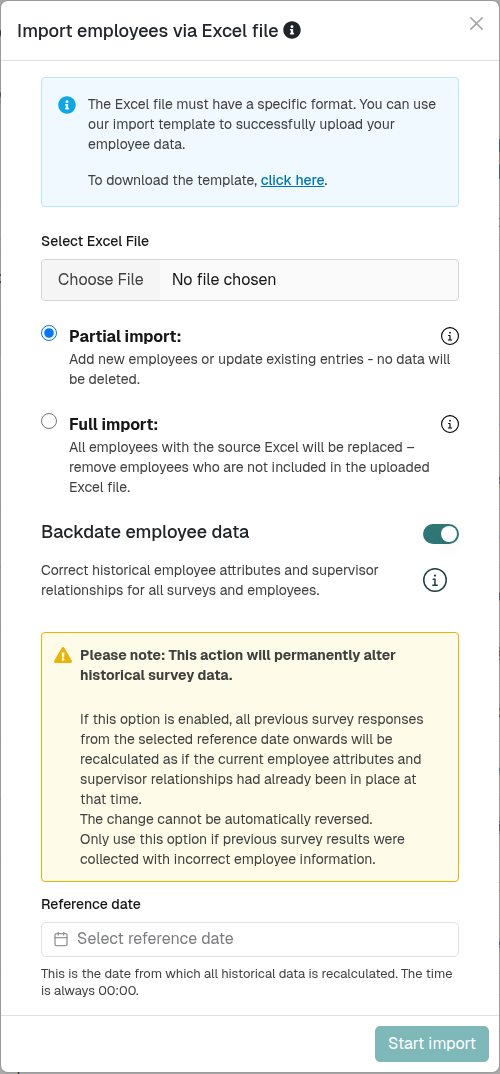
Step 3: Enable backdating and pick a reference date
- Switch on the Backdate employee data toggle. A yellow warning box appears explaining that this action will permanently alter historical survey data.
- In Reference date, pick the date from which the corrected employee data should apply. Every survey response received on or after this date will be recalculated.
- Click Start import.
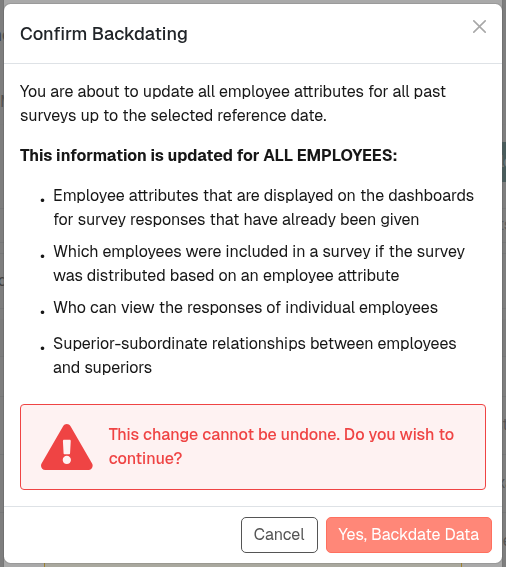
A Confirm Backdating dialog opens and lists everything that will be updated for all employees:
- Employee attributes that are displayed on the dashboards for survey responses that have already been given.
- Which employees were included in a survey if the survey was distributed based on an employee attribute.
- Who can view the responses of individual employees.
- Superior–subordinate relationships between employees and superiors.
Read the list carefully, then click Yes, Backdate Data to proceed, or Cancel to go back.
Step 4: Wait for the import and backdating to finish
After you confirm, two things happen:
- The Excel file is imported as usual. Employees are created, updated, or — for a full import — removed.
- Once the import succeeds, backdating runs automatically against the reference date you picked.
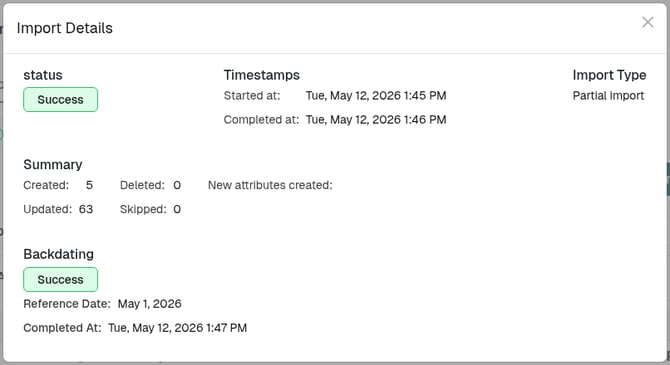
You can follow progress on the Last Import indicator at the top of the Employees page. Click it to open Import Details, where the Backdating section shows one of:
| Status | What it means |
|---|---|
| Pending | Backdating is currently running. Historical dashboards may temporarily show mixed results while the recalculation finishes. |
| Success | Backdating completed. The Completed At timestamp tells you when. |
| Failed | Backdating did not complete. Your imported employee data is still saved, but the historical recalculation did not run. Please contact us so we can investigate. |
If backdating fails, the new employee data is not rolled back — only the historical recalculation is. You can simply re-run the import with backdating enabled once the issue is resolved.
What backdating actually changes
Backdating only touches survey responses received on or after the reference date. Older responses keep their original snapshots. Within that window, four things are rewritten across all employees in the account:
| What gets updated | Where you notice it |
|---|---|
| Employee attributes shown on dashboards | Filters, segmentations and demographic breakdowns of past surveys. A "Department: Sales" filter will include employees who are now in Sales, even if they were in Marketing when they answered. See What are attributes and how are they used?. |
| Who was included in a survey distributed by attribute | Participation counts and recipient lists on past surveys. Backdating does not retroactively send invitations to anyone who was missed — it only corrects how the historical recipient list is displayed and counted. |
| Who can view the responses of individual employees | Manager and report-viewer access to past responses. A new manager gains access to the past responses of their team; a previous manager who is no longer the supervisor loses that access. See How Do Reporting Structures and Data Permissions Work in Honestly?. |
| Superior–subordinate relationships | Manager dashboards and "my team" views for past responses. Open supervisor assignments are closed at the reference date and new ones are created from the reportsToId column in your Excel file. |
What backdating does not change:
- The content of any survey response. Answers stay exactly as the employee gave them.
- Anything before the Reference date. Earlier responses keep their original attribute snapshots, access rules and supervisor links.
- Employees that were already removed before the reference date. They stay removed in history.
- No notification is sent to employees or managers whose access changes.
Tips
- Pick the earliest date that needs correcting. The reference date is the lower bound — older surveys are not touched. Picking a date earlier than needed costs nothing in terms of result quality, but the recalculation will take longer.
- Check a single dashboard before and after. Pick one survey that you know had incorrect attributes, and compare a filter or breakdown before and after backdating. This is the fastest way to confirm the correction landed.
- Run a regular import first when in doubt. If you are not sure whether backdating is needed, do a partial import without it. You can always re-run the import with backdating enabled afterwards.
- Create a “backup” first: Export the current employee list (or save the last import file/version you used) before running backdating. This makes it much easier to track exactly what changed later.
- Document reference date & file version: Record the chosen reference date and the Excel file version internally (e.g., in a note, or ideally directly in the filename). This helps a lot when you need to trace changes afterwards.
- Watch out for time zone effects: The reference date is always treated as 00:00 UTC. If you expect changes to apply “from day X”, consider how UTC vs. local time could shift the effective cutoff (e.g., appearing “one day off”). Especially for international surveys, choose a date that is safely before the first start of the survey you want to correct.
- Prioritize critical fields (access & target groups): Pay special attention to changes in attributes/relationships that determine who was included in a survey and who can see whose answers (e.g., distribution attributes or manager relationships such as
reportsToId) in your Excel file. - Do a quick before/after check (30 seconds): After backdating, open a survey where you know the correct historical setup and spot-check 1–2 key filters/segments, plus one affected manager/team view.
- Note on date-derived attributes (Age Category & Seniority): If attributes are derived from date fields, backdating will always “freeze” those derived values for the period after the backdating date.
Related articles
- How do I import or update my employees via Excel?
- Which guidelines should I follow for a successful Excel import?
- How can I check the source of my imported employees?
- What are attributes and how are they used?
- How Do Reporting Structures and Data Permissions Work in Honestly?
If you have any questions, please do not hesitate to contact us.