
How do I read my 360° feedback results dashboard?
When a 360° feedback run is scheduled, a results dashboard is created for the run. The dashboard combines numerical results, open text responses and AI-generated insights — and lets you tailor the AI analysis to your own development situation.
You find it in the main navigation under Dashboards. 360° feedback dashboards are listed alongside your other dashboards and marked with a 360° badge.
Please note:
- The dashboard is visible to the Feedback Recipient, account admins, and — if manager access was enabled on the run — the recipient's manager. See Who can see the results of a 360° feedback run?.
- Numbers and text are hidden behind anonymity thresholds. See How does anonymity work in 360° Feedback?.
- The AI Analysis of this Data section requires consent for Microsoft to act as a sub-processor. Consent is given in your account settings.
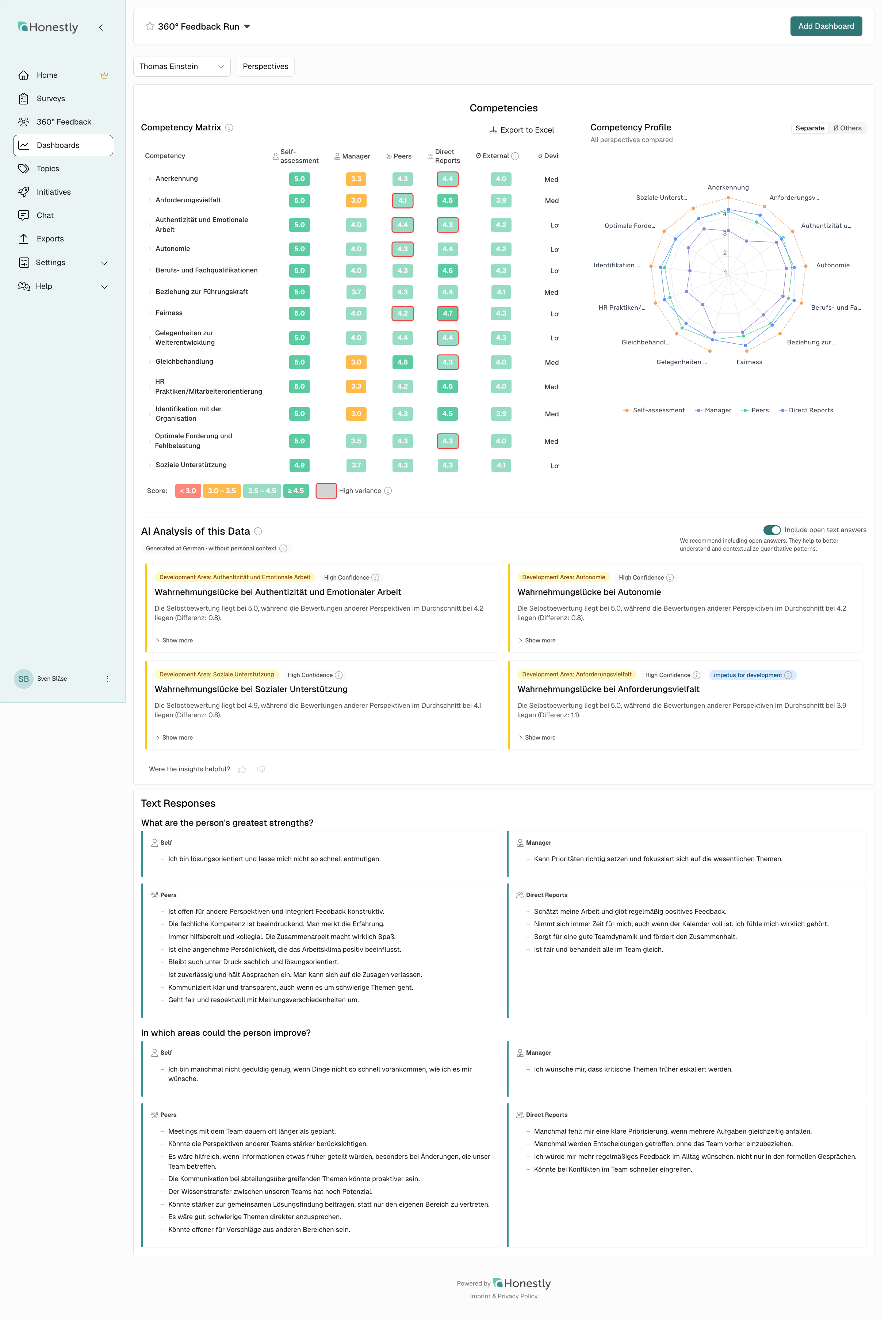
The Competency Matrix
The Competency Matrix is a heatmap of your competencies against each perspective. Rows are dimensions (and, when expanded, the individual questions inside them). Columns are the perspectives that were active in your run: Self-assessment, Manager, Peers and Direct Reports.
Each cell is coloured by score band. The legend below the matrix shows four bands, from red (lowest) through orange and light green to dark green (highest).
The exact thresholds depend on the scale of your questionnaire — they are derived from the first quantitative question in your run. For the default 1–5 scale, the bands are < 3.0, 3.0 – 3.5, 3.5 – 4.5 and ≥ 4.5. For a 1–10 scale the same proportions land at roughly < 5.5, 5.5 – 6.6, 6.6 – 8.9 and ≥ 8.9. The legend always shows the actual numbers for your scale.
A ring around a cell tells you that ratings within that group vary strongly. Rings only appear when at least 6 ratings are available (n ≥ 6).
Two summary columns sit on the right of the matrix:
- Ø External — average of all perspectives except your self-assessment. It tells you how you are perceived overall by those around you.
- σ Deviation — how much the perspectives differ from each other. Low, Medium or High. A high deviation does not automatically indicate a problem — it simply shows that different groups experience you differently.
Hover any cell for the exact mean, response count, and within-group deviation. The How to read the heatmap tooltip in the chart header gives you the same legend at any time.
If a cell shows no number, the anonymity threshold for that perspective has not been reached yet.

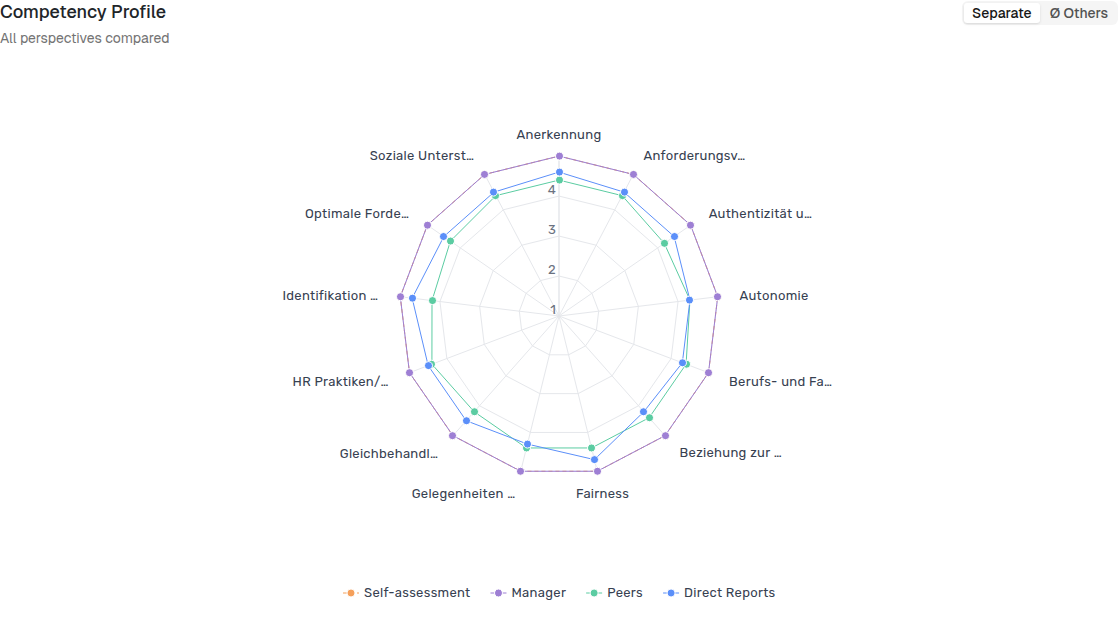
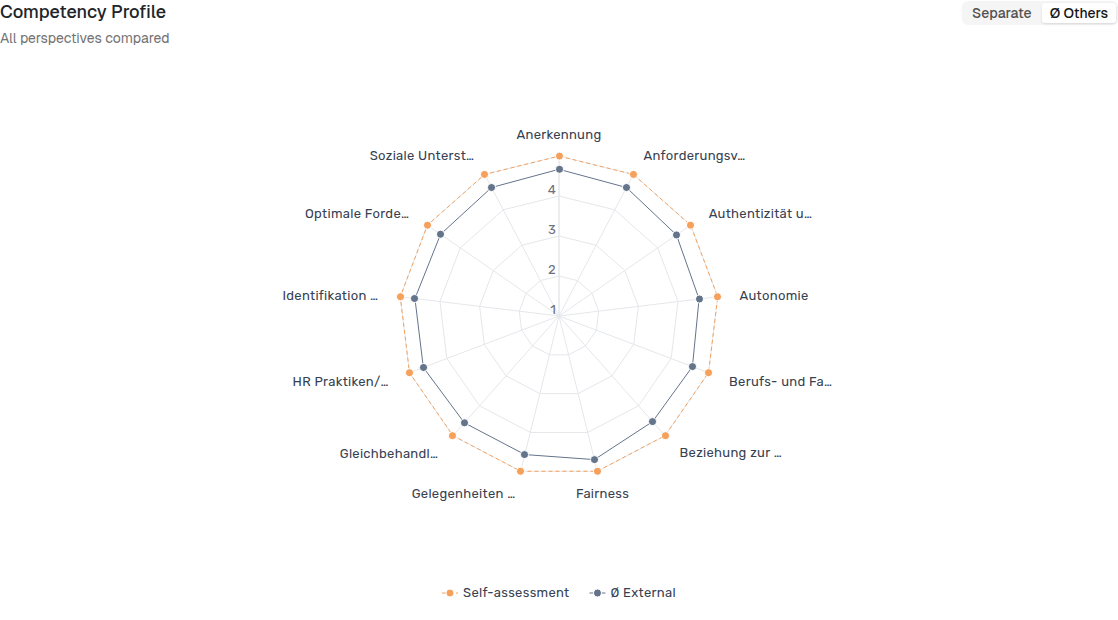
The Competency Profile
The Competency Profile shows the same scores as a radar chart. Each axis is a dimension; each coloured line is one perspective. Use it for the shape, not the precise number — the matrix is the place to read exact values.
Two viewing modes sit at the top of the chart:
- Separate — every perspective is drawn as its own line. Best for spotting which group rates which dimension differently.
- Ø Others — your self-assessment is overlaid on the average of all other perspectives. Best for spotting self-other gaps at a glance.
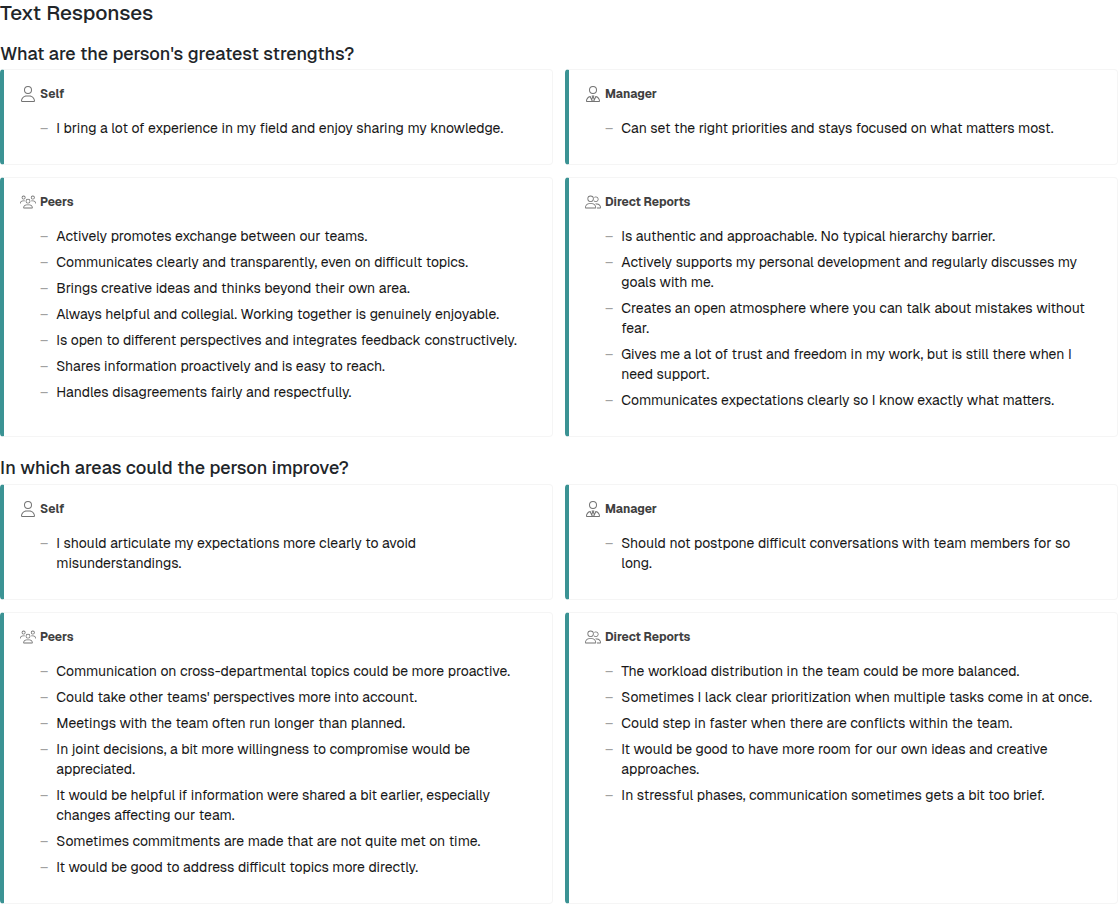
Text Responses
Open answers are shown in the Text Responses chart, grouped by perspective. Text responses have their own anonymity threshold (see the anonymity article) so you may see numerical results in a perspective before the open answers from the same group become visible.
If a perspective has not yet reached its text threshold, you will see: Some text responses are not displayed for privacy reasons as the minimum number of responses was not reached.
Export to Excel
You can download the matrix data as Excel using the Export to Excel button at the top of the matrix card. Anonymity rules apply to the export the same way they apply on screen.
AI Analysis of this Data
The AI Analysis of this Data card sits below the Competency Matrix and turns the numbers into up to four insight cards. The analysis is done in two steps: a rule-based pre-analysis detects data reliability (confidence) and patterns (e.g. perception gap, development priority); then the AI formulates the insight, a reflection question and a first development step.
The five insight types
| Type (label on card) | What triggered it |
|---|---|
| Strength (consistent) | High ratings across all perspectives |
| Strength (hidden) | Others rate you higher than you rate yourself |
| Development Area | Your self-rating differs notably from external feedback |
| Perspective Difference | Different rater groups disagree |
| Opportunity | High-impact area for growth |
Some cards are flagged as the impetus for development — a hint that development in that dimension is likely to have the greatest impact. You decide whether to follow the prompt.
What every card contains
- Interpretation — what the pattern in the data means in your context.
- Reflection Question — a prompt to think through.
- First Development Step — one concrete action you could take next.
- Qualitative Hints — short quotes from open answers that support the insight (when the Include open text answers toggle is on and enough text is available).
Each card carries a Confidence badge (High, Medium or Low). Confidence depends on how many people responded and how consistent they were — significant disagreement within a single perspective lowers confidence.
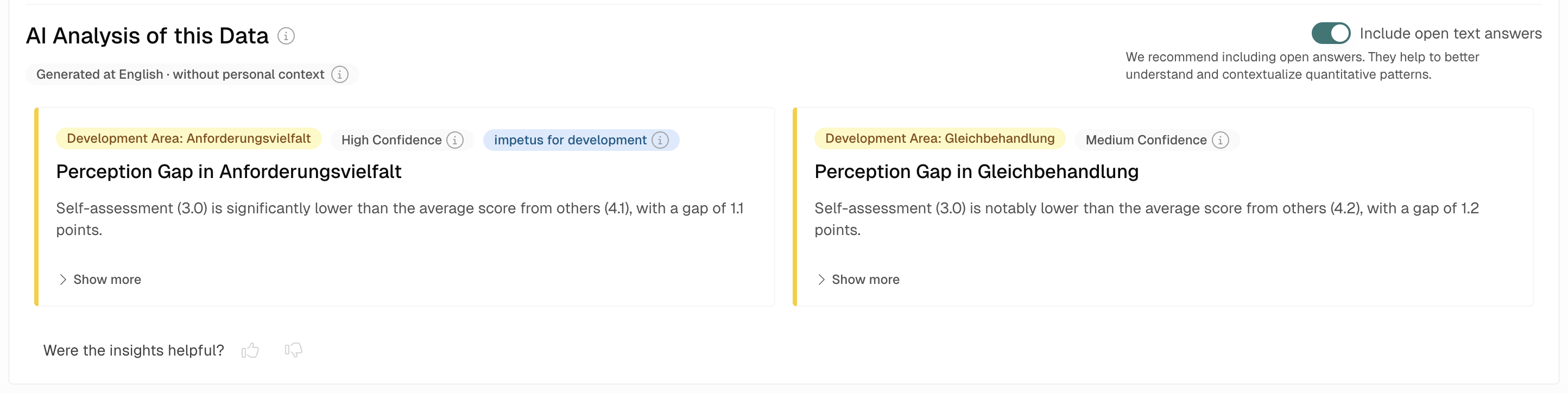
Include open text answers
By default, the analysis uses scores only. Turn on Include open text answers above the cards to re-run the analysis with the qualitative responses included. We recommend doing this — open answers help to better understand and contextualize the quantitative patterns.
What it looks like during an active run
If your run has not yet finished, a banner reads: This feedback cycle is still active. The insights are based on the current responses and will update as more come in. Treat early insights as directional; they will sharpen as more responses arrive.
Personal Context
The AI uses your Personal Context to tailor the framing of insights to your role and goals. Without it, you still get insights — they are just more generic.
You manage your context under Profile → Development Context. The first time you open your 360° dashboard, a modal invites you to set it up: Before we show your 360° results...
Each insights card shows whether context was used: Generated at English · with personalised context or Generated at English · without personal context. If it is missing, you will see an Add personal context link directly on the card.
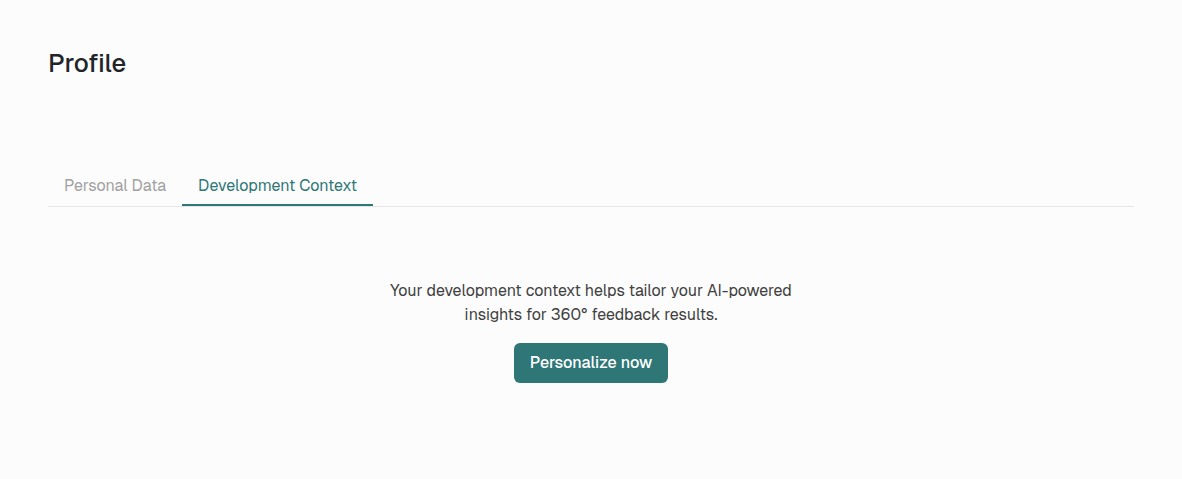
What you fill in
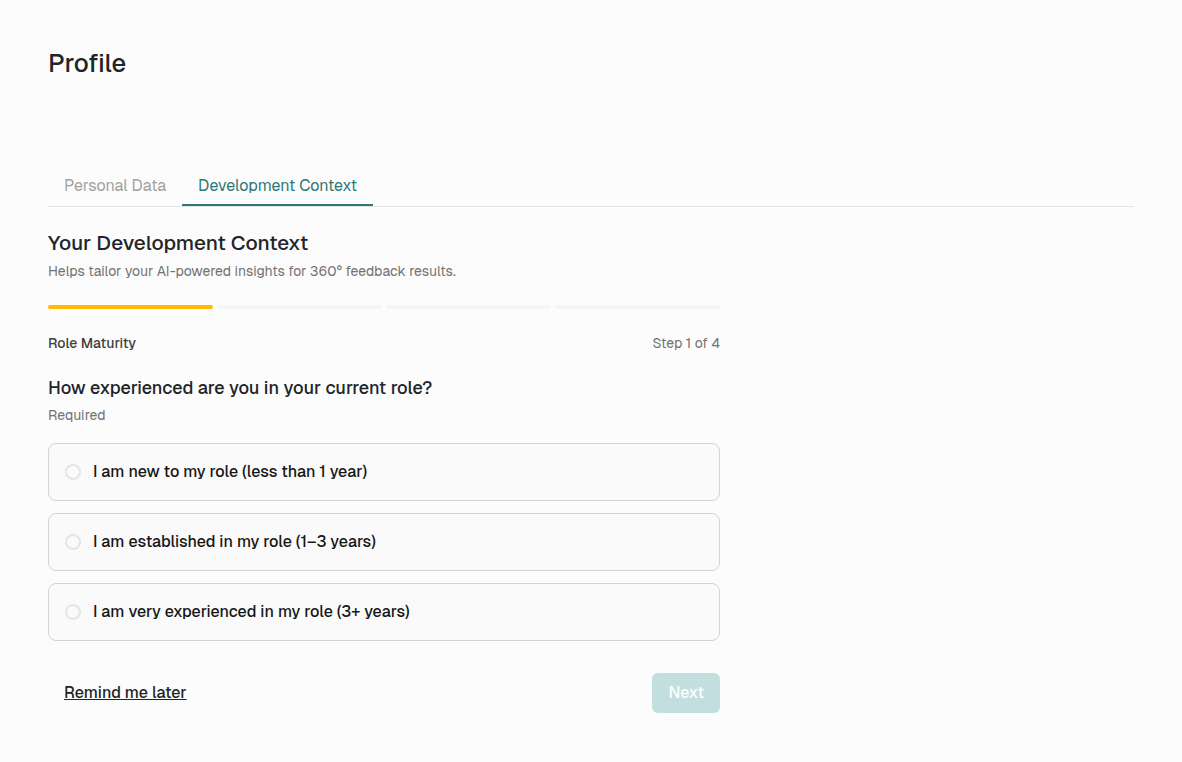
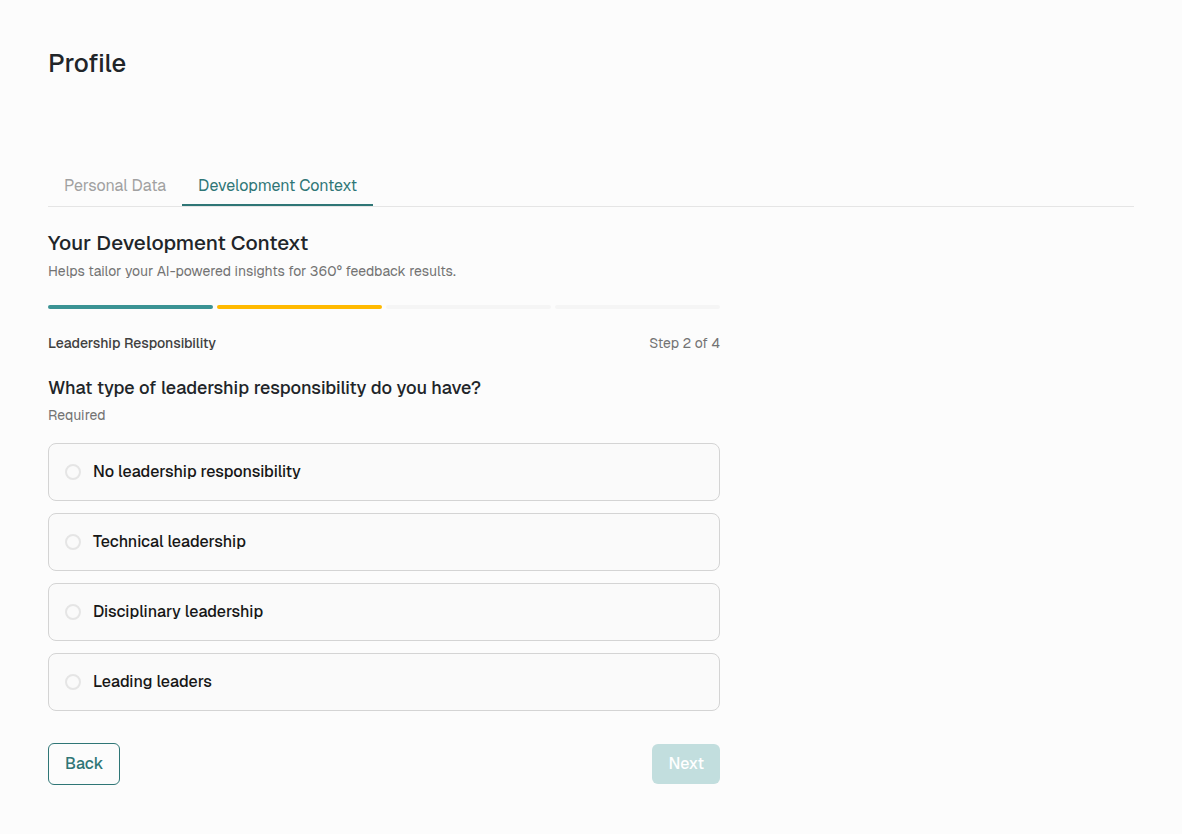
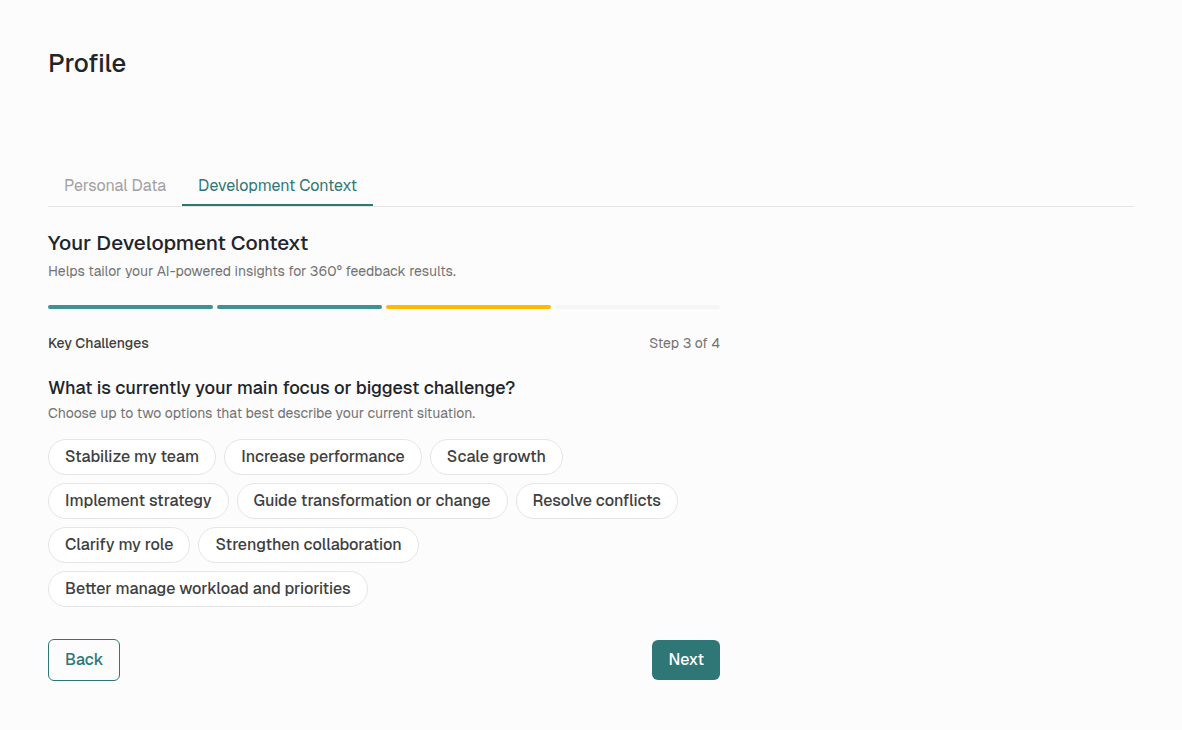
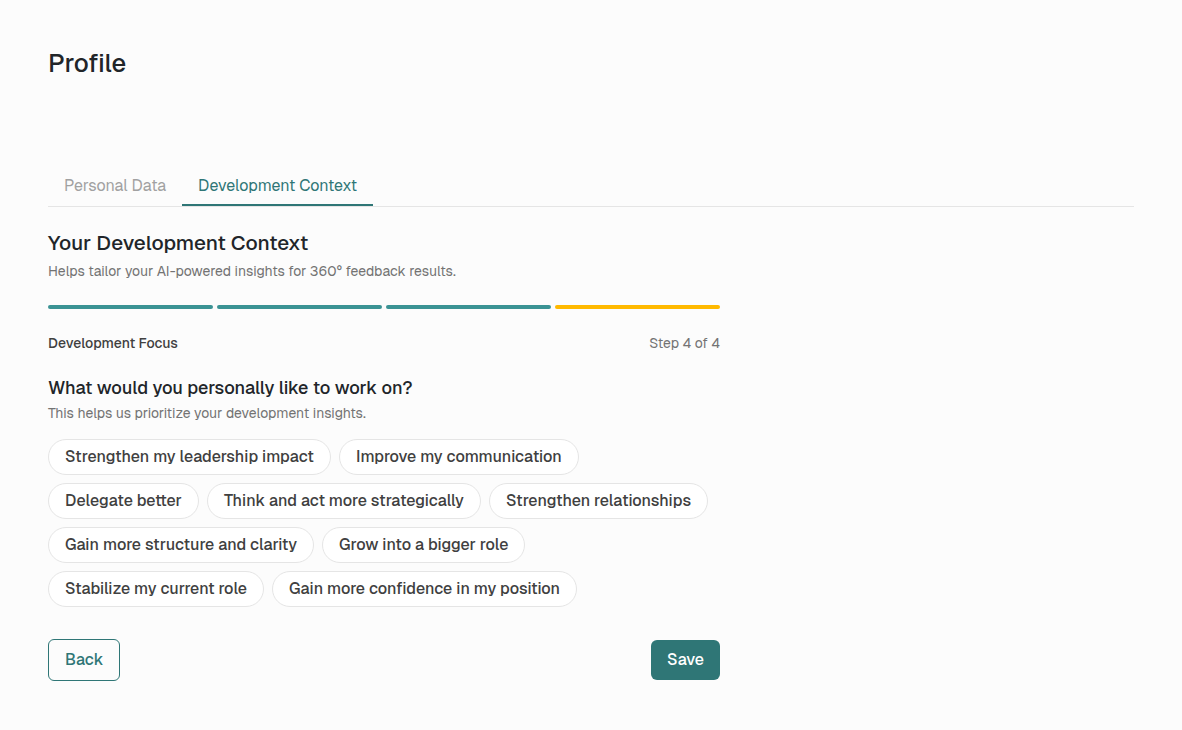
The wizard has four short steps. Two are required:
| Step | Field | What you choose |
|---|---|---|
| 1 | Role Maturity (required) | New to the role (< 1 year), Established (1–3 years), or Very experienced (3+ years) |
| 2 | Leadership Responsibility (required) | None / Technical / Disciplinary / Leading leaders |
| 3 | Key Challenges | Up to two from a list of nine (e.g. Stabilize my team, Scale growth, Resolve conflicts) |
| 4 | Development Focus | Up to five from a list of ten (e.g. Improve my communication, Grow into a bigger role, Delegate better) |
Use Remind me later on step 1 to dismiss the wizard for now; Back and Next move between steps; Save on the final step stores everything. You will see Development context has been saved.
How your context shapes the AI output
The AI is told to:
- match the language of reflection questions to your seniority,
- frame development steps in terms of your stated challenges and focuses,
- make interpretations relevant to your professional situation.
The data itself is never re-weighted. Scores, gaps and patterns are always reported as observed — your context only changes the framing and the suggested next steps.
Editing or resetting your context
On the Development Context tab you will see the saved values, when they were last updated, a Customize button to update them, and a Reset button. Reset asks you to confirm: Your development context will be deleted. You can set it up again at any time.
Updating your context invalidates the cached AI insights. Open your dashboard again and the cards will be re-generated with the new framing.
Tips
- Read the matrix first, then the Competency Profile. The matrix gives precision; the profile gives shape.
- Use Ø Others mode to spot self-other gaps quickly. Then go to the matrix to find which dimension drives the gap.
- Turn on Include open text answers when you want depth. It often surfaces the why behind a number.
- Set your Personal Context before reading the AI insights. It is much faster to do once than to re-read insights with two framings.
- A low confidence badge is a signal, not a verdict. It usually means more responses are needed before you over-interpret a pattern.
What's next?
- How does anonymity work in 360° Feedback?
- Who can see the results of a 360° feedback run?
- What is 360° Feedback and how does it work?
If you have any questions, please do not hesitate to contact us.