
If you are an admin and want to create a survey for other users (e.g. analysts or report viewers), you can follow these steps:
1. Update employee data
Make sure your data is up to date and that all employees, who should be invited, are in the account. Then you will be able to select them in the distribution list. It helps if they all belong to one group, such as a department or team.
2. Create the survey and set notifications
Create the survey as usual.
In the “Notifications” step, you can configure that the manager is automatically informed once the survey is completed.

3. Grant access to the survey
There are two ways to grant access to a survey:
Option 1: Directly during survey creation
In the final step of the survey creation process (“Permissions”), you can add specific users who should have access to the survey.
Simply start typing the user’s name and select them from the suggestions to grant access.

Option 2: Via the employee settings
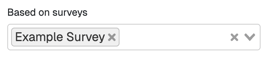
Go to Settings → Employees → “Access to specific surveys”.
There, you can grant the respective user access to all data of this survey.
4. Select the distribution list
In the distribution list, select the group or individuals, who should be invited to the survey.
In the schedule, you can see exactly how many employees are included.

5. Create and share a dashboard
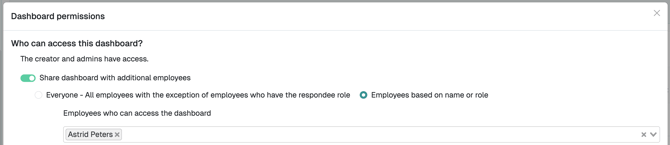
Create a dashboard and grant access to the relevant user.
It’s best to name it specifically so only that person has access.
If the user has the “Analyst” role, they can also export the data themselves.
6. Activate the survey
Once everything is set up, you can activate the survey.