
Adding individual recipients
- Go to the Distribution section of the survey.
- Scroll to the bottom of the list of attributes until you find the option called "Employees", which contains all employees in the account.
- At the top of the attribute selection box, you will see a search field where you can enter the names of the people you want to add.
- All matching employees will appear in a list, for example, all people named Peter if you search for “Peter”.
- Click the correct person to add them to the recipient list on the right, and check that the selection is correct.
Individually added people can also be removed individually.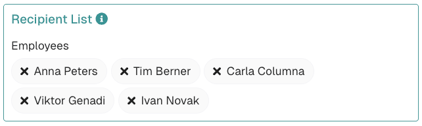
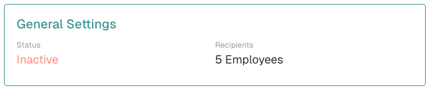
In the next step, "Schedule", you will see the exact number of employees you are inviting to this survey on the right side.
Difference from attribute-based selection
Alternatively, you can select full attributes, such as the "Sales" and "HR" departments.
With attribute-based selection, however, you cannot include or exclude individual employees.