> ## Documentation Index
> Fetch the complete documentation index at: https://help.honestly.com/llms.txt
> Use this file to discover all available pages before exploring further.
# SSO Guide with Entra ID (formerly Azure AD)
> 1\. Copy Honestly field ‘Honestly Entity ID’ to Azure field ‘Identifier (Entity ID)’
### **Adding Honestly from the gallery**
1. Sign in to the [Microsoft Entra admin center ](https://login.microsoftonline.com/organizations/oauth2/v2.0/authorize?redirect_uri=https%3A%2F%2Fentra.microsoft.com%2Fsignin%2Findex%2F\&response_type=code%20id_token\&scope=https%3A%2F%2Fmanagement.core.windows.net%2F%2Fuser_impersonation%20openid%20email%20profile\&state=OpenIdConnect.AuthenticationProperties%3DAx3h6XHSI4BuurL5rKgjyevT0_aJIknEWeOziTZMDUImWFEbXdXtAJB1oSWPe3ntE8-MuQEqnxq9lcHsQ6adGYgYYMmKrq0l2ClQFdmzaEoU5yhHlpvaiHetJgHrcSFlBIgu4wz1BtFIZhNTL2zQSuQX9ZD8X5XYr-t5J8rSCxdsV_lZKR92LHbgSlB2KUFYVggQAsA8amYW3TYZq3DMe1dmN52ye2CpIdSRZ15xrgF-ekjKaoLatfOOu2D6HnHLfZA2nBwe_ANxE10XB9urzrctwdNfvSaDwBe_-WKr5LQ5e2u2vsjJYqsN39FIwXL6GeQktoBWGaQWhWhH9mqnNt2eZmuf2oBLNOr3DaQlodgH7avlgulH2Yuuldamu8dBBaa2pQ8hP6A8fJ6GKsh_1k-q5MQ8NN8rRPBp6tMWflPOGupd3mOlKBRNW3xH60XOtlZfRsgg3ZUVgGLCDI4s2g\&response_mode=form_post\&nonce=638901633932938852.NjM2NDZjZjAtYjAzZi00ZGQ4LWJmNTAtMzIzN2MyOTAwMjFhNWE2ZTcwNjQtNmM4NC00MzM1LWI5M2ItZjRlOTFkNTVmMWRi\&client_id=c44b4083-3bb0-49c1-b47d-974e53cbdf3c\&site_id=501430\&instance_aware=true\&cobrandid=106b89c7-ab4e-4963-afb3-004cd2f15cac\&client-request-id=55f52f53-9d09-4f00-a404-a08591c16d1a\&x-client-SKU=ID_NET472\&x-client-ver=8.3.0.0\&sso_reload=true)as at least a [Cloud Application Administrator](https://learn.microsoft.com/en-gb/entra/identity/role-based-access-control/permissions-reference#cloud-application-administrator).
2. Browse to **Entra ID** > **Enterprise apps** > **New application**.
3. In the **Add from the gallery** section, type **Honestly** in the search box.
4. Select **Honestly** from results panel and then add the app. Wait a few seconds while the app is added to your tenant.
5. Open Honestly Enterprise Application and select ‘2. Set up single sign on’
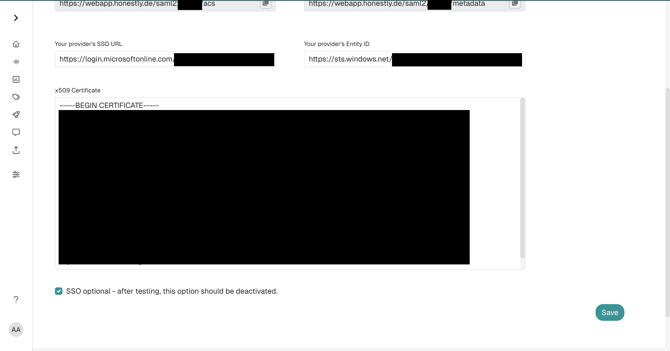
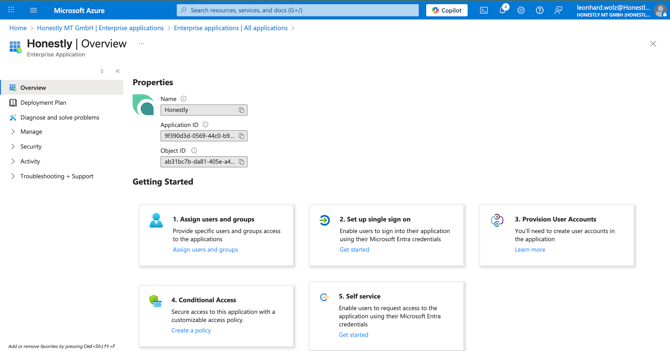 6\. In Honestly: Navigate to SSO Page:\
1\. Copy Honestly field ‘Honestly Entity ID’ to Azure field ‘Identifier (Entity ID)’\
2\. Copy Honestly field ‘Honestly ACS URL’ to Azure field ‘Reply URL (Assertion Consumer Service URL)’
6\. In Honestly: Navigate to SSO Page:\
1\. Copy Honestly field ‘Honestly Entity ID’ to Azure field ‘Identifier (Entity ID)’\
2\. Copy Honestly field ‘Honestly ACS URL’ to Azure field ‘Reply URL (Assertion Consumer Service URL)’
 7. In Azure:\
1\. Copy Azure field ‘Login URL’ to Honestly field ‘Your provider's SSO URL’\
2\. Copy Azure field ‘Microsoft Entra Identifier’ to Honestly field ‘Your provider's Entity ID’
7. In Azure:\
1\. Copy Azure field ‘Login URL’ to Honestly field ‘Your provider's SSO URL’\
2\. Copy Azure field ‘Microsoft Entra Identifier’ to Honestly field ‘Your provider's Entity ID’
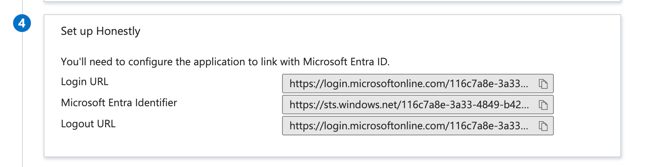
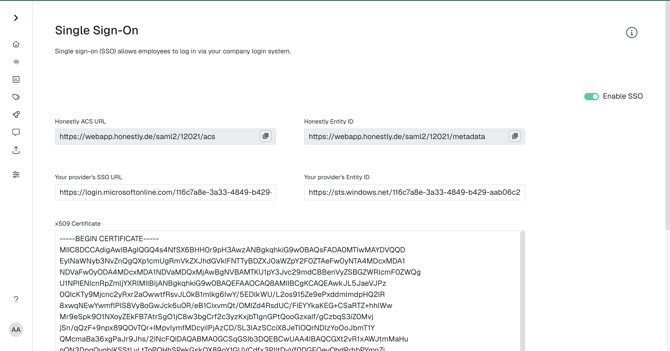 8\. In Azure:
1. 1. Download SAML Certificate ‘Certificate (Base64)’.
2. Open with text editor and copy contents(including ‘-----BEGIN CERTIFICATE-----’ and ‘-----END CERTIFICATE-----’ to Honestly field ‘x509 Certificate’
8\. In Azure:
1. 1. Download SAML Certificate ‘Certificate (Base64)’.
2. Open with text editor and copy contents(including ‘-----BEGIN CERTIFICATE-----’ and ‘-----END CERTIFICATE-----’ to Honestly field ‘x509 Certificate’
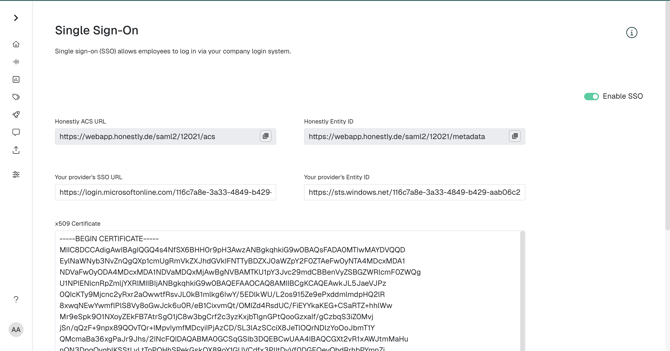 9\. In Honestly click on ‘Save’ at the bottom
 ### **User and group assignment (important)**
For your SSO integration to work correctly, you need to assign all relevant users and/or groups to the Honestly app in your identity provider (in Microsoft Entra ID).
Only users and groups that are explicitly assigned to the SSO setup will be able to sign in to your Honestly organization.
Make sure that all roles that require access to Honestly (for example, admins, HR, managers, employees) are correctly assigned in the identity provider.
If assignments are missing, affected users will not be able to log in, even if SSO is technically configured correctly.
\---
#### SSO types with Honestly
There are two main SSO types you can use with Honestly:
1\. Honestly-initiated SSO
In this flow, users start the login directly on the Honestly login page.
Flow:
\- Users enter their email address on the Honestly login page.
\- No password needs to be entered in Honestly.
\- Authentication is handled by the identity provider.
This option is useful if users are used to logging in directly via the Honestly login page.
2\. Identity Provider-initiated SSO (IdP-initiated)
In this flow, users start the login directly from the identity provider (for example, Microsoft Entra ID) instead of the Honestly page.
Flow:
\- Users click the Honestly app in the identity provider.
\- The email address is automatically passed from the identity provider to Honestly.
\- Users do not need to manually enter their email address in Honestly.
This option is particularly convenient if you want to manage access centrally via your identity provider (for example, via an app portal or dashboard).
Note on the “User Access URL” (for IdP-initiated login)
In your identity provider, you can find a *User Access URL* (or similarly named URL) in the configuration of the Honestly app.
This URL is used when users start the login directly via the identity provider (IdP-initiated login). Make sure that this URL is configured correctly and is accessible for the intended users and/or groups so that the login flow works smoothly.
### **User Access URL (for IdP-initiated login)**
In the properties overview, you can find the **User Access URL in your Identity Provider**.
This URL (or a shortened version) is required to correctly configure the login flow and enable users to access Honestly.
The following [Link](https://learn.microsoft.com/en-us/entra/identity/saas-apps/honestly-tutorial) will take you to further explanation of the interface (if you are routed to the German page, you can switch to English by clicking on the respective button in the top right-hand corner).
### **User and group assignment (important)**
For your SSO integration to work correctly, you need to assign all relevant users and/or groups to the Honestly app in your identity provider (in Microsoft Entra ID).
Only users and groups that are explicitly assigned to the SSO setup will be able to sign in to your Honestly organization.
Make sure that all roles that require access to Honestly (for example, admins, HR, managers, employees) are correctly assigned in the identity provider.
If assignments are missing, affected users will not be able to log in, even if SSO is technically configured correctly.
\---
#### SSO types with Honestly
There are two main SSO types you can use with Honestly:
1\. Honestly-initiated SSO
In this flow, users start the login directly on the Honestly login page.
Flow:
\- Users enter their email address on the Honestly login page.
\- No password needs to be entered in Honestly.
\- Authentication is handled by the identity provider.
This option is useful if users are used to logging in directly via the Honestly login page.
2\. Identity Provider-initiated SSO (IdP-initiated)
In this flow, users start the login directly from the identity provider (for example, Microsoft Entra ID) instead of the Honestly page.
Flow:
\- Users click the Honestly app in the identity provider.
\- The email address is automatically passed from the identity provider to Honestly.
\- Users do not need to manually enter their email address in Honestly.
This option is particularly convenient if you want to manage access centrally via your identity provider (for example, via an app portal or dashboard).
Note on the “User Access URL” (for IdP-initiated login)
In your identity provider, you can find a *User Access URL* (or similarly named URL) in the configuration of the Honestly app.
This URL is used when users start the login directly via the identity provider (IdP-initiated login). Make sure that this URL is configured correctly and is accessible for the intended users and/or groups so that the login flow works smoothly.
### **User Access URL (for IdP-initiated login)**
In the properties overview, you can find the **User Access URL in your Identity Provider**.
This URL (or a shortened version) is required to correctly configure the login flow and enable users to access Honestly.
The following [Link](https://learn.microsoft.com/en-us/entra/identity/saas-apps/honestly-tutorial) will take you to further explanation of the interface (if you are routed to the German page, you can switch to English by clicking on the respective button in the top right-hand corner).