> ## Documentation Index
> Fetch the complete documentation index at: https://help.honestly.com/llms.txt
> Use this file to discover all available pages before exploring further.
# How can I integrate with Microsoft Teams?
> With the Honestly Microsoft Teams integration, you can send survey invitations and reminders directly to employees through Teams. This streamlines communication and enhances survey participation.
#### **Key Features**
* Survey notifications delivered via Microsoft Teams messages.
* Matching of Honestly users to Teams accounts via email.
* Simple setup via Microsoft AppSource.
#### **Prerequisites**
* Admin privileges to add apps to your Microsoft Teams environment.
* Employees must have Honestly accounts with email addresses that match their Teams profiles.
#### **Installation Steps**
*Individual Installation via AppSource:*
1. Visit Microsoft AppSource.
2. Search for the [Honestly app](https://appsource.microsoft.com/en-us/product/office/WA200008637).
3. Click "Get it now" and follow the prompts to add it to your Teams environment.
4. Approve any necessary permissions to complete the installation.
*Install Honestly for All Users (Admin Method):*
1. **Access the Teams Admin Center:**
* [Sign in to the Microsoft Teams admin center.](https://admin.teams.microsoft.com/dashboard)
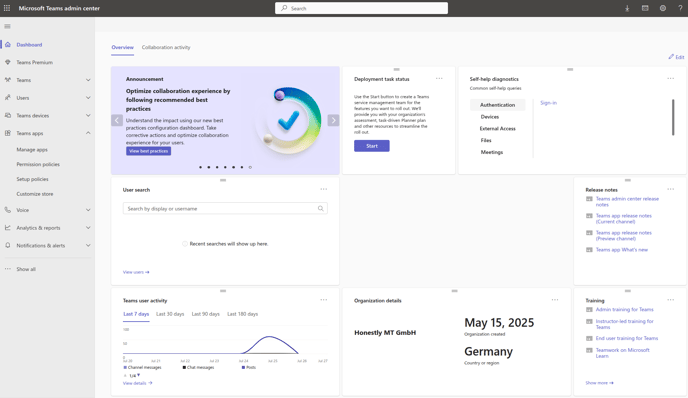 1. **Manage Setup Policies:**
* Navigate to "Teams apps" > "Setup policies".
* Edit the existing global policy (applies to all users) or create a new custom policy.
2. **Add Apps:**
* Under "Installed apps," select "Add apps".
* Search for the Honestly app and select it.
* Click "Add".
1. **Manage Setup Policies:**
* Navigate to "Teams apps" > "Setup policies".
* Edit the existing global policy (applies to all users) or create a new custom policy.
2. **Add Apps:**
* Under "Installed apps," select "Add apps".
* Search for the Honestly app and select it.
* Click "Add".
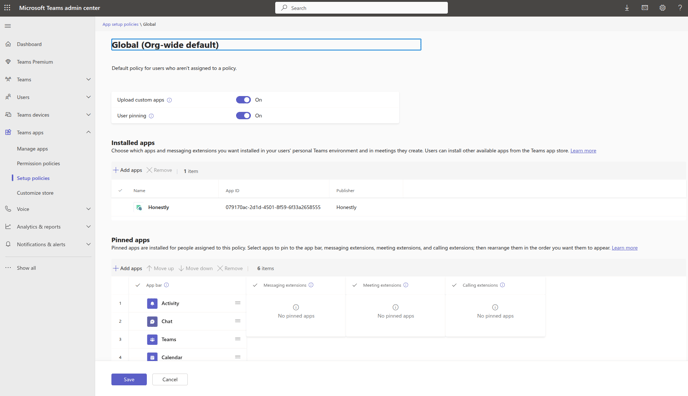 1. **(Optional) Pin Apps:**
* Under "Pinned apps," select "Add apps".
* Search for the Honestly app and select it.
* Click "Add".
2. **Apply the Policy:**
* For custom policies, assign them to the desired users or groups.
* Global policy changes apply automatically to all users.
3. **User Experience:**
* Users will see the Honestly app in their Teams client as an installed or pinned app, depending on policy settings.
**MS Teams User Sync Schedule**
* Users are synced during the initial app installation.
* Automatic sync occurs twice per month:
* On the 3rd and 15th of each month at 3:55 AM.
**How It Works**
* After installation, Honestly will automatically send messages to matched users when they are invited to participate in surveys.
* Survey reminders will be sent in the same manner.
**Troubleshooting**
* Not receiving messages? Confirm email matching between Honestly and Teams accounts.
* Setup issues? Verify admin rights in your Teams tenant.
**Privacy & Security**
* Notifications are only sent to users included in survey campaigns whose emails match between Honestly and Teams.
* Honestly does not access or transmit any other personal data through Teams.
For more help, please reach out to our support team or explore our Help Center.
1. **(Optional) Pin Apps:**
* Under "Pinned apps," select "Add apps".
* Search for the Honestly app and select it.
* Click "Add".
2. **Apply the Policy:**
* For custom policies, assign them to the desired users or groups.
* Global policy changes apply automatically to all users.
3. **User Experience:**
* Users will see the Honestly app in their Teams client as an installed or pinned app, depending on policy settings.
**MS Teams User Sync Schedule**
* Users are synced during the initial app installation.
* Automatic sync occurs twice per month:
* On the 3rd and 15th of each month at 3:55 AM.
**How It Works**
* After installation, Honestly will automatically send messages to matched users when they are invited to participate in surveys.
* Survey reminders will be sent in the same manner.
**Troubleshooting**
* Not receiving messages? Confirm email matching between Honestly and Teams accounts.
* Setup issues? Verify admin rights in your Teams tenant.
**Privacy & Security**
* Notifications are only sent to users included in survey campaigns whose emails match between Honestly and Teams.
* Honestly does not access or transmit any other personal data through Teams.
For more help, please reach out to our support team or explore our Help Center.